 Session Recordings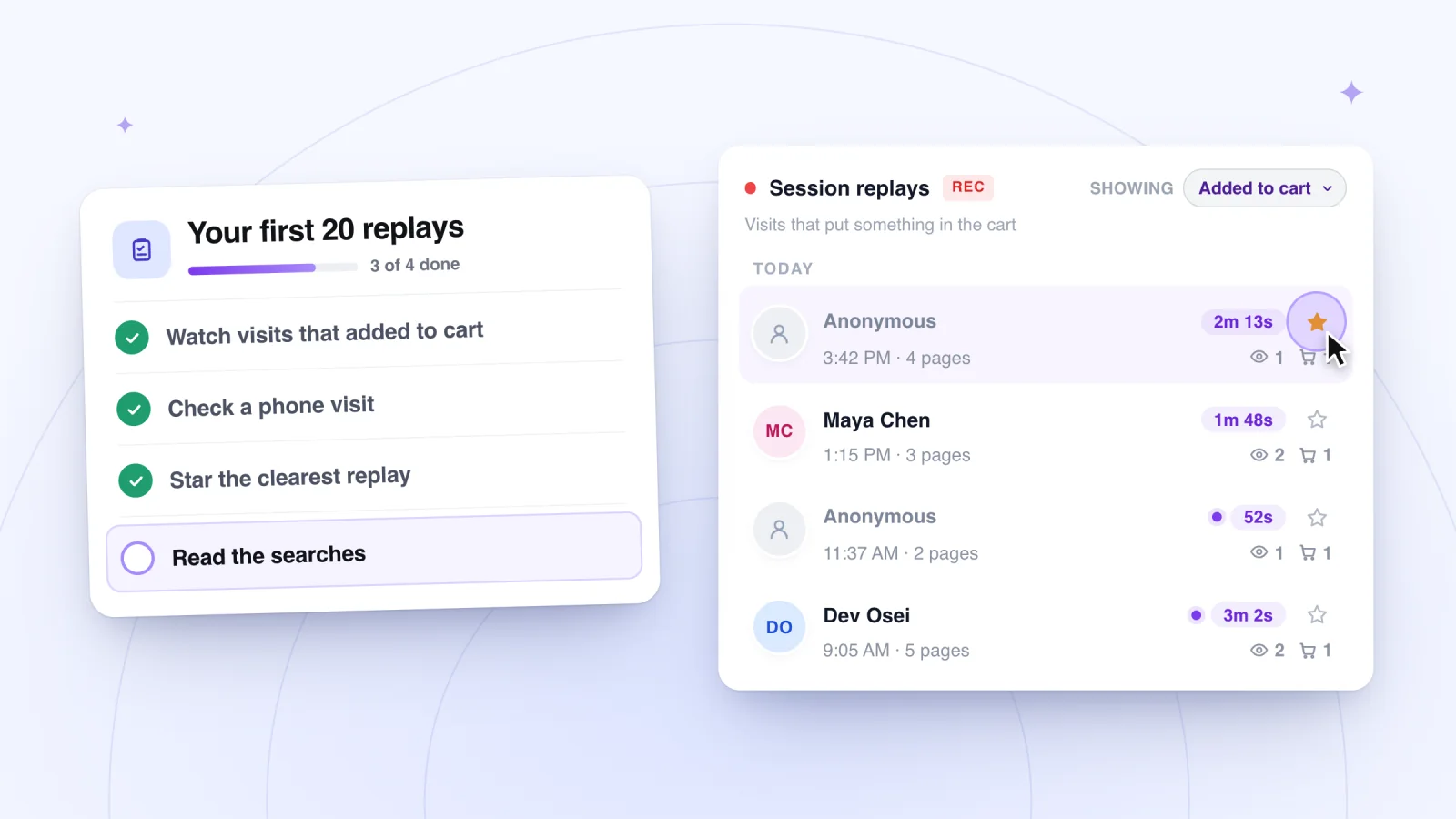
On this page
The first time you open a list of recordings, it is hard to know what you are looking at. A checklist gives every replay a job. Watch 20 visits with these checks in hand, log what you see, and you will finish with a short list of specific things to fix.
Key takeaways
- Pick a mix of 20 visits across filters, days and phones, and do not choose only the longest ones.
- Log each finding in one spreadsheet row with the replay link, time, page, device, type and a repeat count.
- Sort findings by how often they repeat, favor problems closer to the sale, and fix the top three.
- Run the checklist again on 20 fresh visits after any big change, and compare the two sheets.
Choose a mix of 20 visits
Twenty is small enough to finish in a sitting or two and large enough to show repeats. Choose a mix so you see more than one kind of visit.
- If you run a store, take some visits from Viewed a product and some from Added to cart.
- If you collect sign-ups, add a few from Signed up.
- Fill the rest from All visits, spread across different days of the week.
- Make sure several of the 20 happened on phones. Phone visits play back in the phone's own shape, so you will know them when you see them.
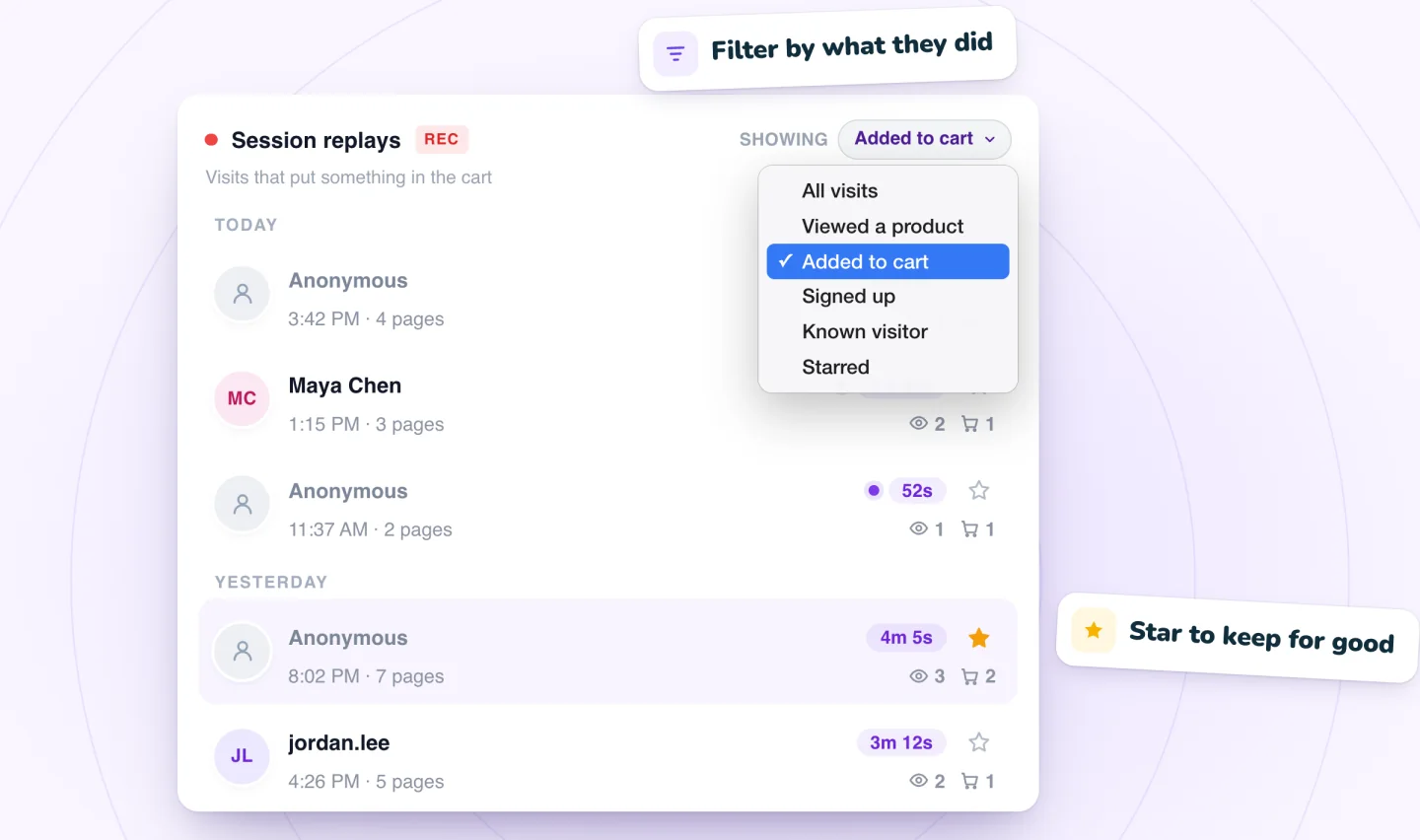
Avoid picking only the longest visits. A short visit that ends early can tell you more than a long, happy one.
For moving quickly through each replay, see how to watch session recordings without losing hours. This article is about what to look for once you are watching.
Set up before you press play
- Open a blank spreadsheet with the columns described further down, so logging takes seconds.
- Write down anything you changed on the site in the last month, like a new banner, a price change or a new menu. It helps you tell new problems from old ones.
- Block out an hour without interruptions. Twenty replays go faster when you are not switching between tasks.
- Keep your own site open in another tab, so you can click the same things the visitor did.
- Decide which pages matter most to your business, such as your best-selling product or your sign-up page, and give them extra attention.
The checklist
Keep the seven groups below in mind as you watch. You do not need to tick every box on every visit. Note what you see, and move on.
Navigation
- Where the visitor lands, and whether their first click makes sense from there
- Menu sections opened and closed without a click inside, a sign of hunting
- Clicks on headings, photos or icons that are not links
- Quick trips back and forth between two pages
Search
- Whether visitors use search at all, and from which page
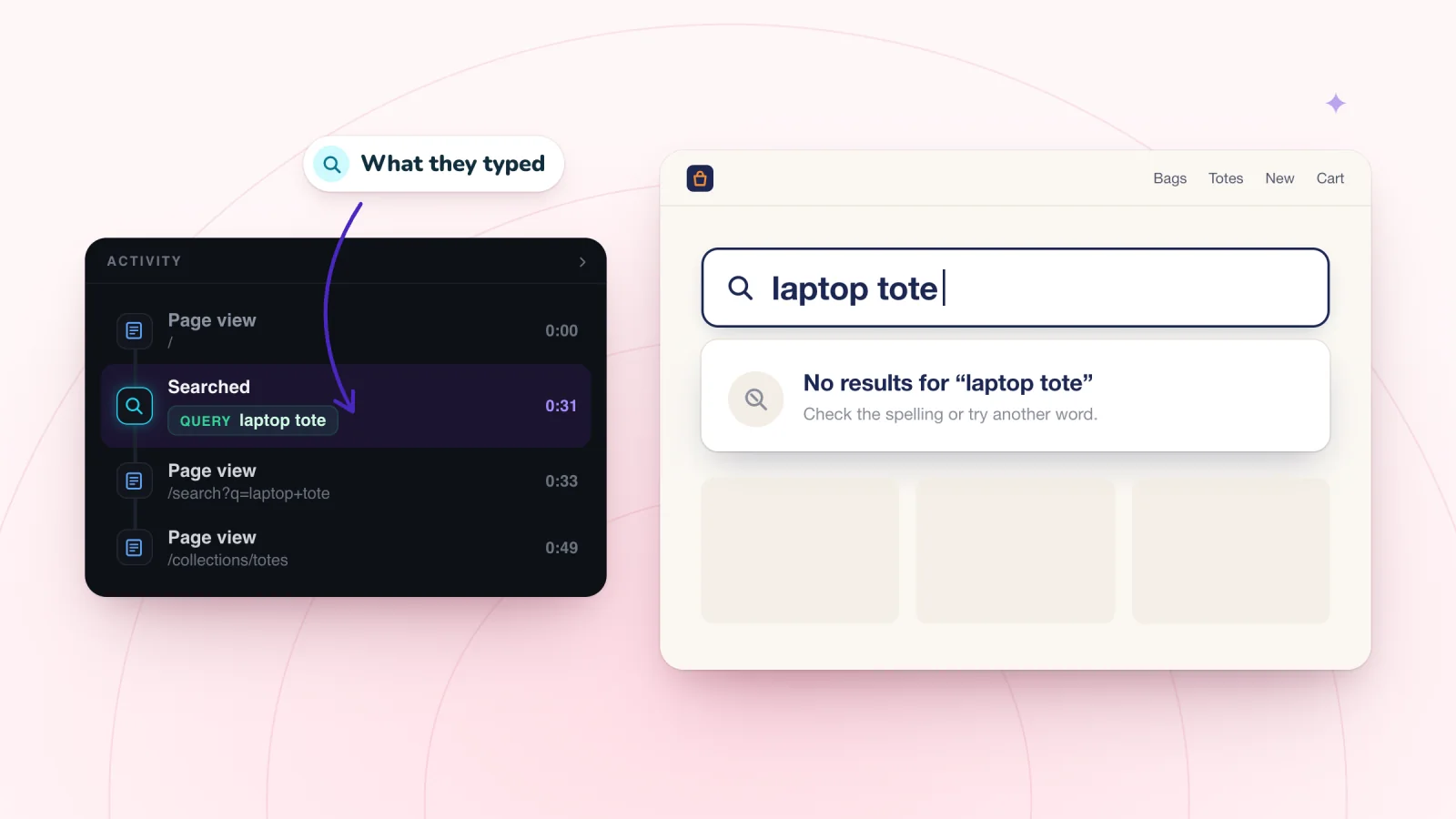
- A second search right after the first, which means the first one missed
- Searches that end the visit
Search deserves its own review. See what site searches tell you about your visitors.
Product pages
- How far down the page the visitor scrolls before deciding
- Which photos they look at
- Whether they reach the add to cart button at all
- How long they stay before leaving or adding
Cart
- Visits with an add to cart moment and no checkout moment
- Items removed or quantities changed in the cart
- Trips from the cart to other pages, such as shipping or returns
Mobile
- Anything covering the page, such as a banner, pop-up or chat button
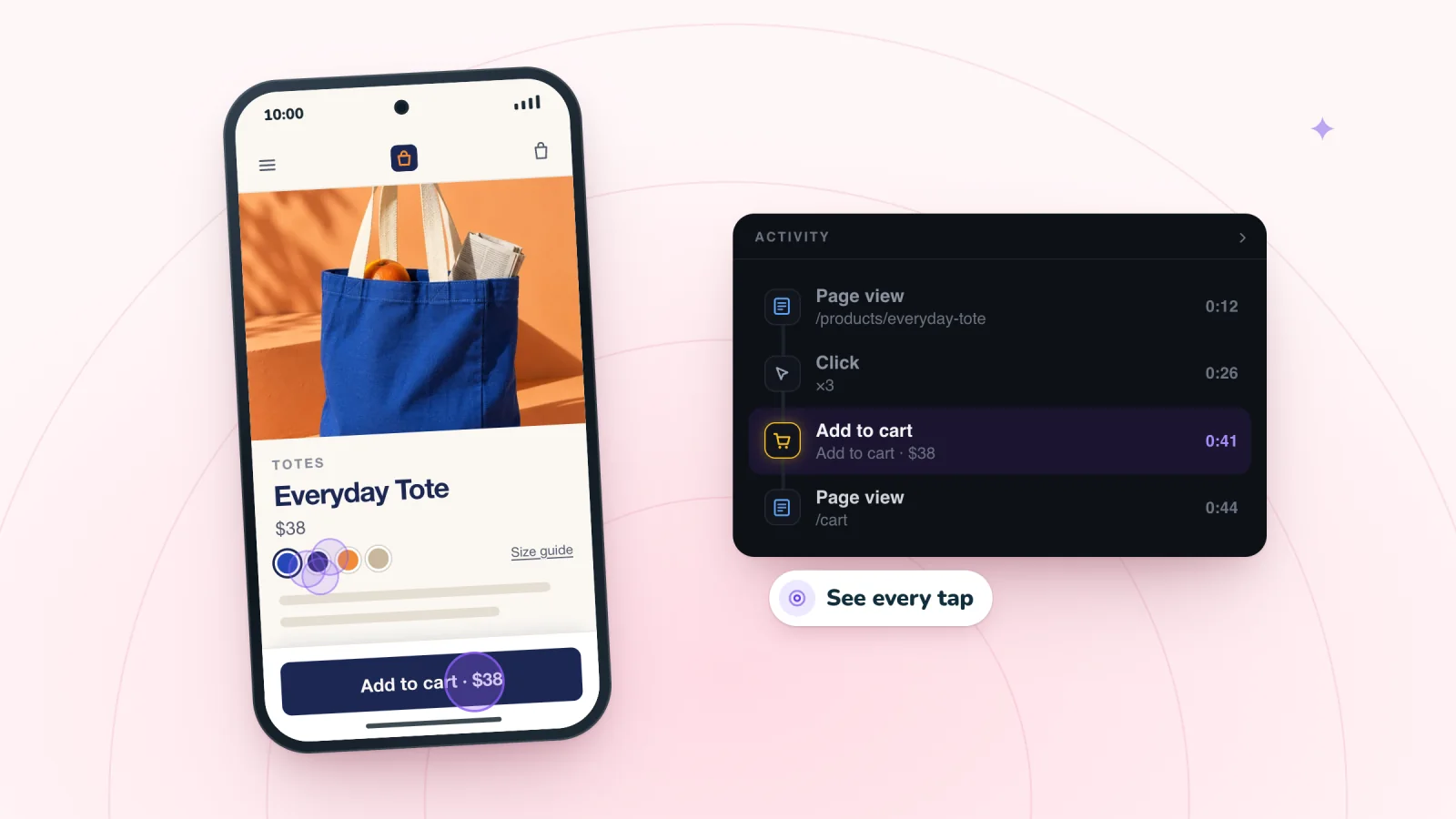
- Taps that miss their target or repeat
- Pages that slide sideways as the visitor scrolls, a sign something is wider than the screen
Forms
- Fields the visitor taps into and leaves without typing
- Forms started and never sent
- A submit click followed by the same page, which can mean an error the visitor had to hunt for
Errors
- Error messages on the page
- Clicks that change nothing
- Several fast clicks in one spot, a sign of frustration
- A visit that ends right after something goes wrong
Find the visits worth watching
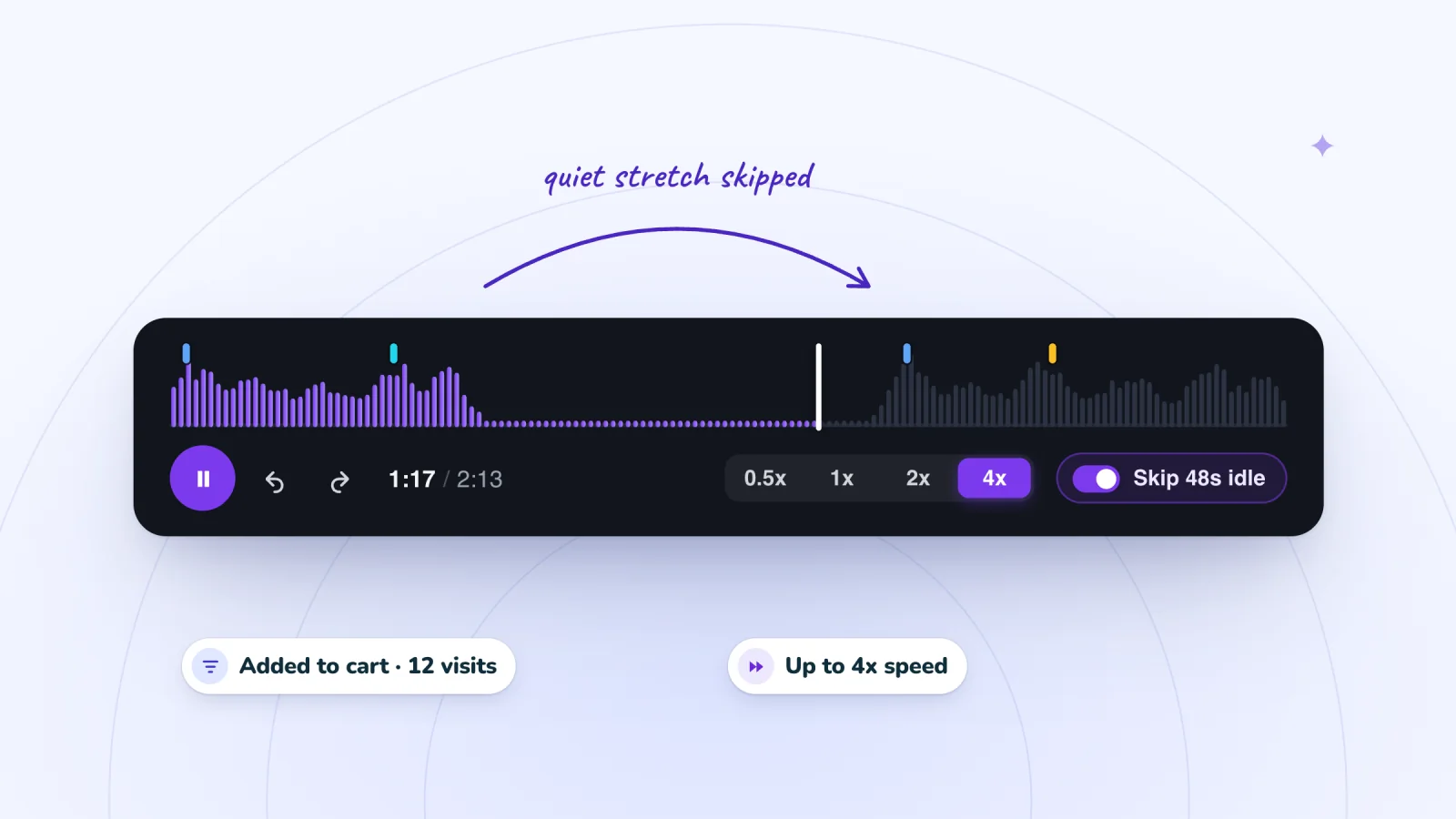
Filter to visits that added to cart or signed up, jump to marked moments and skip the quiet parts.
Add to Wix, it's free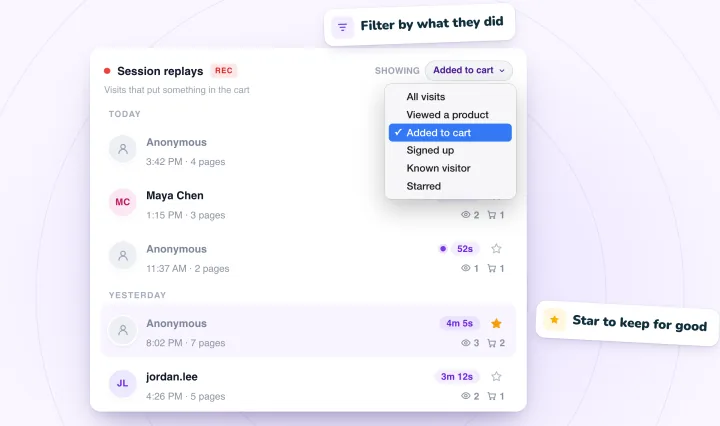
What to skip
Not every visit deserves a row in your notes. Skip these and move on.
- Visits that last a few seconds with no clicks, taps or scrolling
- Your own visits and your team's, since insiders already know where everything is
- One-off oddities you cannot explain after a second look. Put them on a short "maybe" list and see if they come back.
Sort each finding into a type
Give each finding a type as you log it. The type points to the kind of fix it needs.
| Type | What it looks like | What to do next |
|---|---|---|
| Bug | Something broken, like a button that does nothing | Report it with the replay link |
| Confusion | Several tries to do one simple thing | Rename, move or simplify the element |
| Missing info | The visitor leaves the page to look for an answer | Put the answer where they looked first |
| Distraction | Something pulls attention away from the task | Delay, shrink or remove it |
Some findings fit two types. A pop-up whose close button sits off the screen is both a distraction and a bug. Pick the type that points to the fastest fix, and keep going.
Log findings in one place
Use a spreadsheet with one row for each finding. A single replay can produce several rows, or none. Give each row these columns.
- The replay link, copied from the replay
- The time in the replay
- The page
- Phone or computer
- The type from the table above
- One sentence describing what happened
- A count of how many replays showed it
A finished row might read like this.
Replay link, 0:48, jacket product page, phone, Missing info. Opened the size guide twice, then left for the FAQ page. Seen in 3 replays.
When a later replay shows the same thing, add one to the count on the existing row. Your sheet stays short, and repeats are easy to spot.
Turn 20 replays into three fixes
After your 20th replay, sort the sheet by count. A problem that shows up in six visits matters more than one that shows up once. If two findings tie, start with the one closer to the sale. A snag in the cart costs you more than one on your About page.
Pick the top three. For each one, write the fix in a single sentence and decide who will do it. Bugs go to whoever maintains the site. Confusion and missing info can be changes you make yourself in your site editor. Distractions can be the quickest of all, since removing something takes minutes.
Share the sheet with anyone who helps with the site, so they can see the evidence behind each fix. Keep it when you finish, too. The next time you make a big change, such as a new theme, a new menu or a new product line, run the checklist again on 20 fresh visits and compare the two sheets.
Frequently asked questions
What are the signs of user frustration on a website?
The clearest signs are repeated clicks or taps in one spot, menus opened and closed without a choice, and quick trips back and forth between two pages. Fields tapped and left empty, forms started and never sent, and visits that end right after an error are signs too. One sign alone can be chance, so count how often each one repeats.
What is the difference between usability testing and session recording?
In usability testing, you give chosen people tasks and watch them work, so you can ask what they were thinking. Session recording shows real visitors doing whatever they came to do, with nobody guiding them or asking questions. Testing tells you more about reasons, while recordings show natural behavior across many visits. The two work well together: recordings to spot problems, and a short test to understand them. Our guide to finding usability problems on a small website shows how to run one.
How often should you review session recordings?
A short, regular review works better than an occasional marathon. A weekly slot of about 25 minutes, with one question per session, is a good rhythm for a small site. After any big change, such as a new theme, menu or product line, review 20 fresh visits with a full checklist and compare what you find with your last review.
Can a team review session recordings together?
Yes. Split the visits between people, use the same spreadsheet columns, and paste the replay link into every row so anyone can check a finding against the visit. In Session Recordings, each replay has a link you can copy and share with teammates who have access to your dashboard. Meet briefly afterward to merge repeated findings and agree on the top three fixes.
Try it on your site
The free plan of Session Recordings includes 2,000 recordings a month with every feature, which is more than enough for a first batch of 20. See all the plans on the pricing page.

We build marketing apps for online stores: myuser.ai writes and sends emails and texts from a store's own products, and we make Session Recordings and Spin Wheel for Wix sites. Product details in our guides are checked against the apps themselves.