 Session Recordings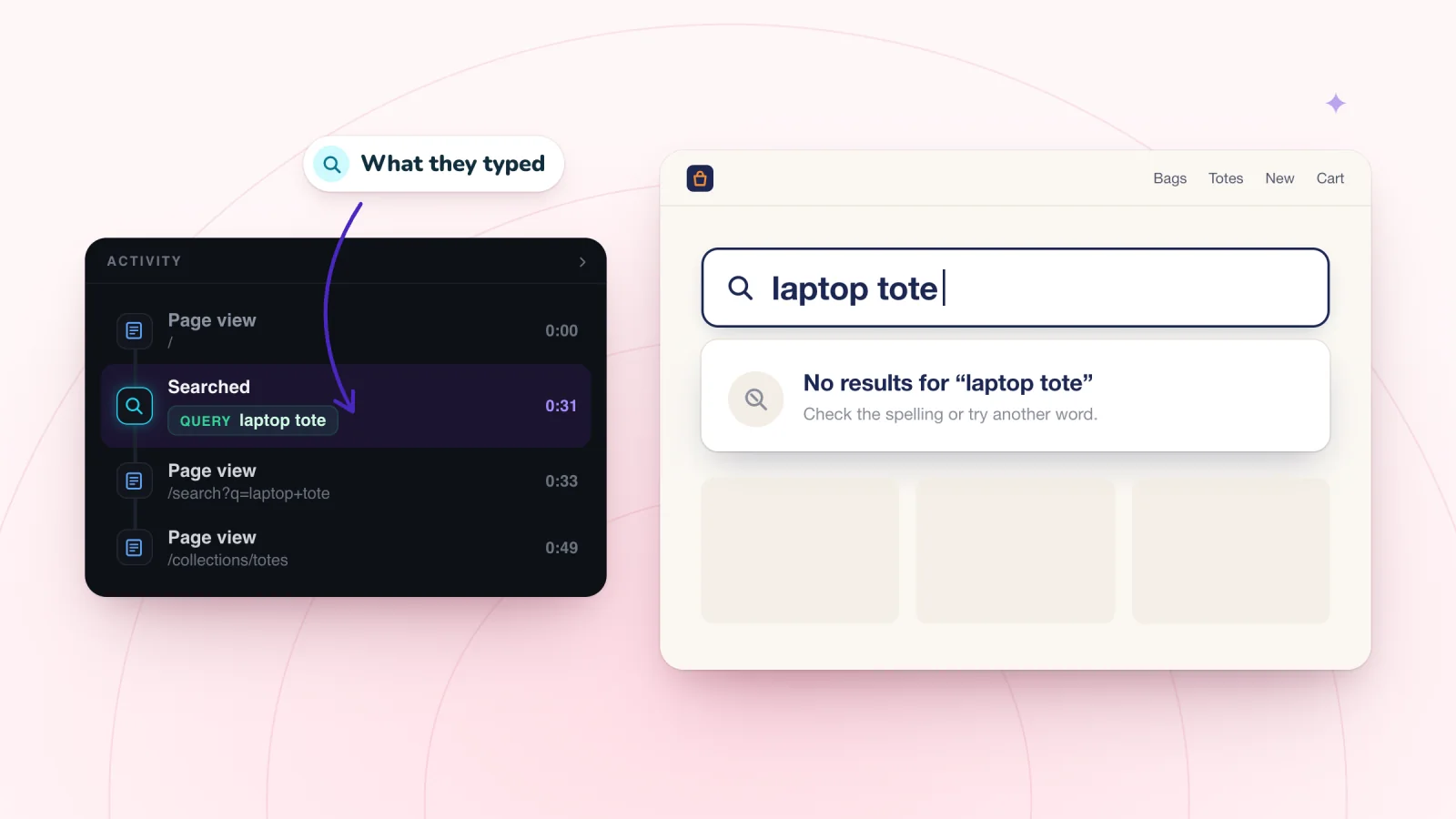
On this page
- Where search terms show up in replays
- Read the search, then the next 30 seconds
- Notice where searches start
- Make the search box easy to find
- Zero-result searches
- Check the results page
- Your words and theirs
- Searches for help
- Searches that point to new products
- Keep a search log
- Frequently asked questions
- Try it on your site
When a visitor types into your search box, they tell you what they came for, in their own words. Those words are worth reading closely. Replays show each search next to what the visitor did next, which tells you whether your site gave them what they asked for. Reading them one visit at a time is the simplest kind of site search analytics.
Key takeaways
- For each search, note the words, the starting page and what the visitor did in the next 30 seconds.
- Fix zero-result searches by adding visitors' words and spelling variations to product names or descriptions.
- Make sure help pages like shipping and returns exist with clear titles, so search can find them.
- Review your search log monthly and act first on terms that keep coming back.
Where search terms show up in replays
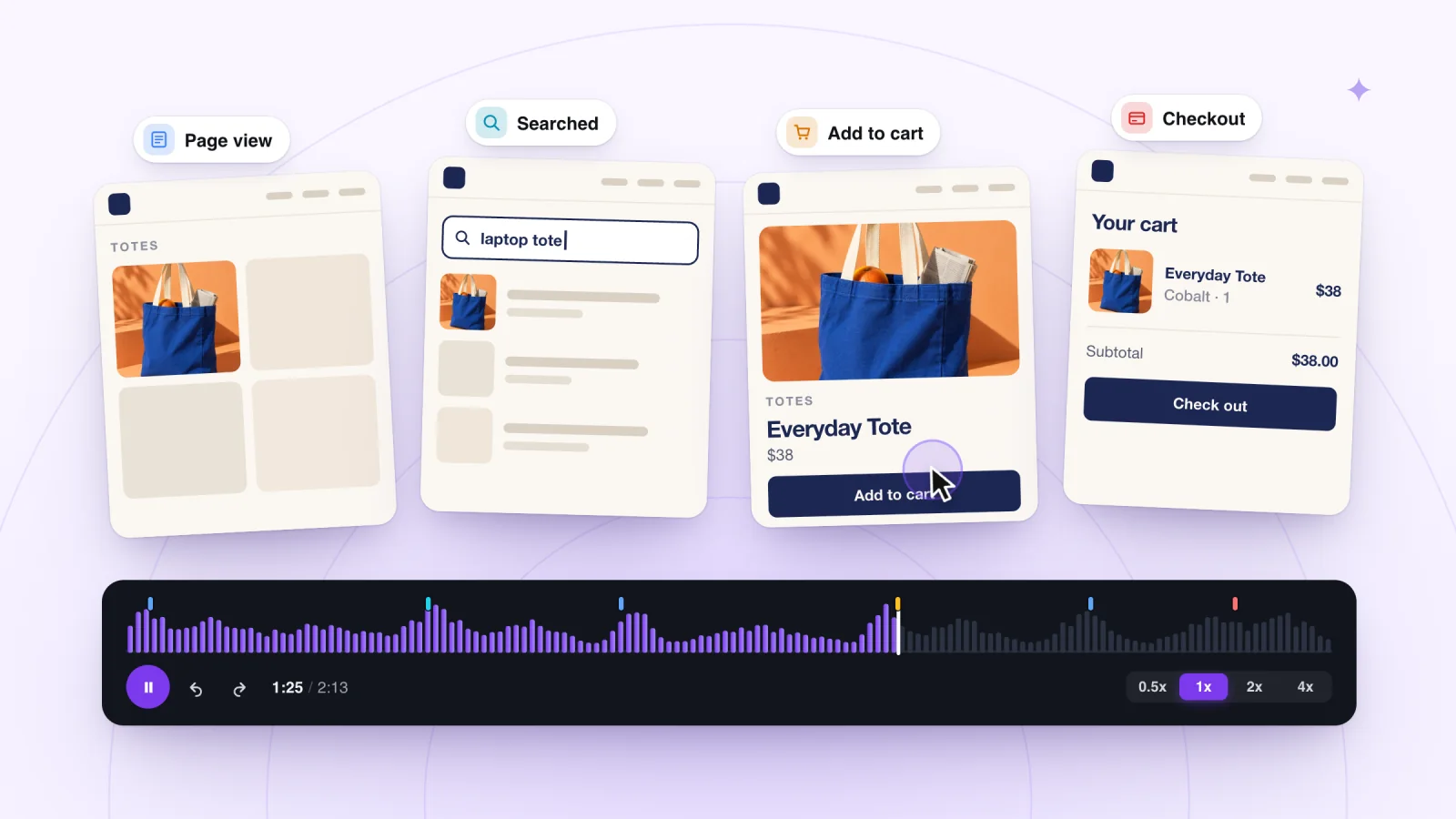
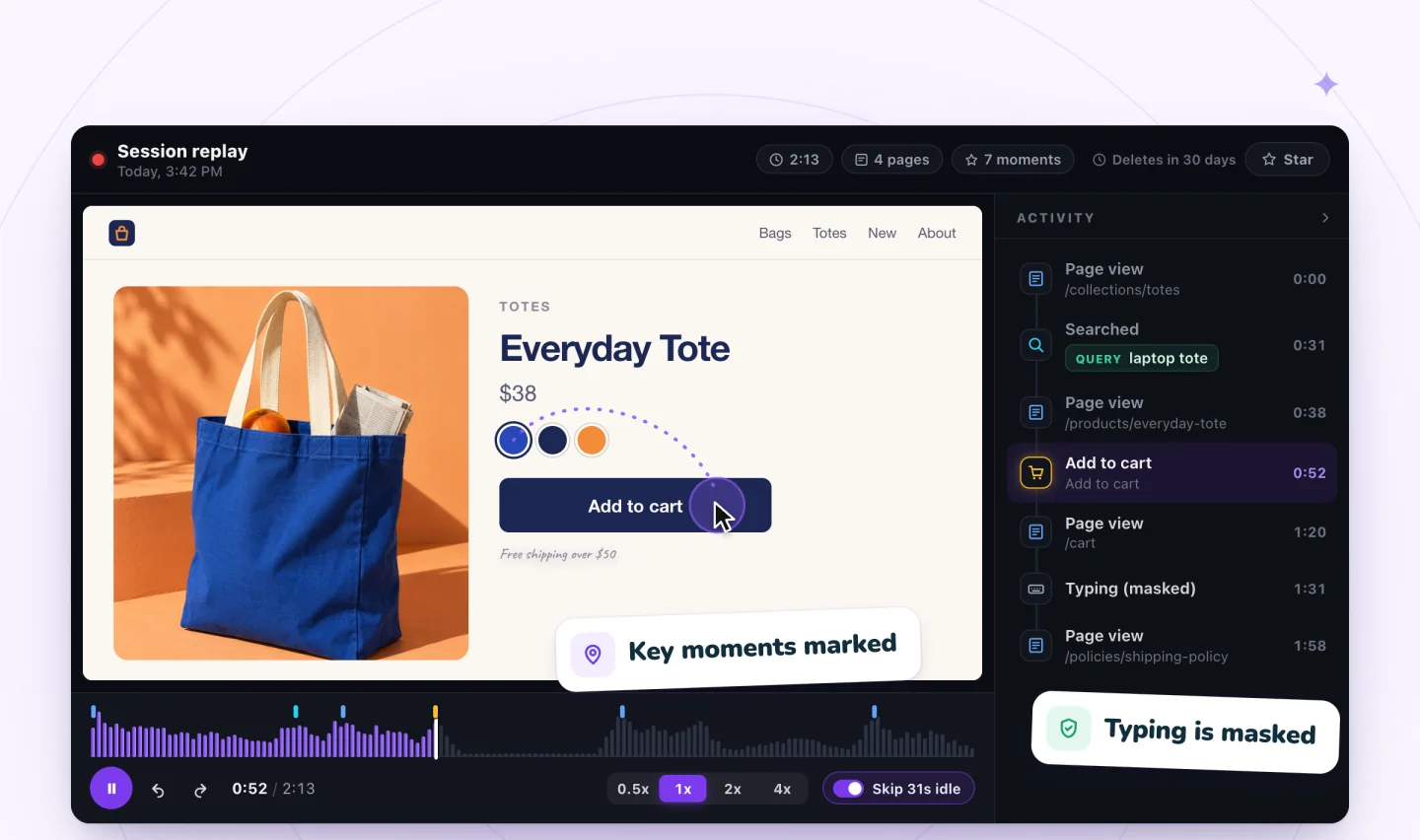
Searches are marked as moments on the replay timeline, and the Activity list beside the replay lists them along with every other moment. Click a search to jump straight to it.
Session Recordings can show the words a visitor submits in your store's search box. Everything else a visitor types is masked before it leaves their browser and shows as asterisks, as explained on the private recording page.
Read the search, then the next 30 seconds
The search term tells you what the visitor wanted. The next 30 seconds tell you whether they got it.
- They click a result and keep going. The search worked.
- They search again with different words. The first search missed. Note both terms.
- They scroll the results and leave. The results did not match what they meant.
- They land on a no-results page and leave. You lost them at the search box.
Write down the term and the outcome for each search you watch. A few dozen of these make a useful log.
Notice where searches start
The page a visitor searches from adds meaning to the words.
- From the home page, they likely knew what they wanted before they arrived.
- From a product page, they may want a similar item, a different size, or something that goes with it.
- From a collection page, the collection may not have shown what they expected.
- From the cart, they may be looking for one more item to reach free shipping, or for a code.
Note the starting page next to each term in your log.
Make the search box easy to find
Some visitors want to search and cannot find the box. In a replay, they open the menu, close it again, and tap around the header as if hunting for a search icon.
- Show a search box or a clear search icon in the header on every page, phones included.
- Give the box a short hint, such as "Search candles, gifts or sizes."
- Keep it in the same place on every page.
Zero-result searches
A search with no results means one of two things. Either you do not carry what the visitor wants, or you do and the search cannot find it.
The second case is fixable today. Say a visitor searches for "throw blanket" and gets nothing, while you sell three items called "knit throw." You have what they want. The words just do not match.
Here is how to close the gap.
- Add the words visitors use to your product names or descriptions, wherever your search looks.
- Cover spelling variations that show up in your log, like "pajamas" and "pyjamas."
- Improve the no-results page. Add links to popular categories, a way to contact you and a note suggesting other words to try.
Watch shoppers move from product to checkout
Store moments are marked on every replay, and filters find the carts that never became orders.
Add to Wix, it's free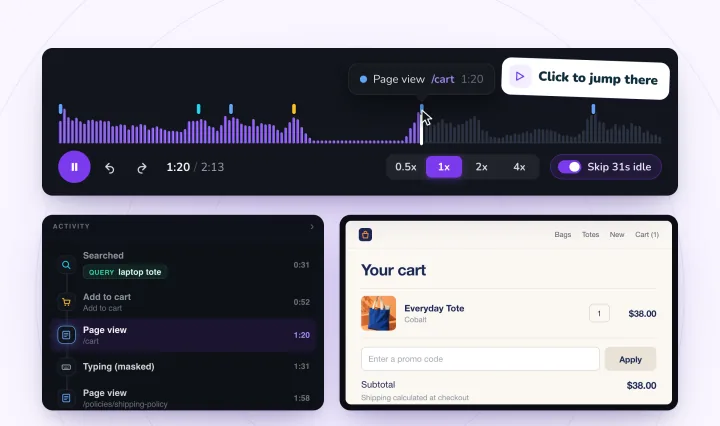
Check the results page
A search can find the right products and still lose the visitor on the results page.
What to watch. Visitors scrolling past several results before clicking, or leaving after the first screen. Taps on a result that turns out to be sold out.
What to fix.
- Show a photo, the price and the stock status for each result.
- Put the closest matches first, if your search settings allow it.
- Add filters for size, color or price on results pages if your catalog is large.
Your words and theirs
You name products the way your supplier or your craft names them. Visitors use everyday words. Collect the pairs as you find them.
- sofa and couch
- hoodie and sweatshirt
- gray and grey
- tote and bag
Each pair is a small fix. Put the visitor's word in the product title, the description, or both. To find pairs before visitors do, ask a friend who has never seen your shop to describe a few products in their own words. Over time, the list becomes a naming guide for new products too. When a product name changes, check that its page uses the new word everywhere. For more on making those pages clear, see how to improve your product page.
Searches for help
Some searches are not for products at all. Visitors type "shipping," "returns," "size chart," "track order" or "contact." Each one tells you they could not find that information from your menu.
- Make sure each of those pages exists and has a clear title, so search can find it.
- Add those pages to your footer, and put the ones searched for again and again in your main menu.
- Write page titles in the words visitors used.
Each of these searches is a question you could answer before anyone has to ask it.
Searches that point to new products
Repeated searches for something you do not sell can be a signal. If visitors search for "gift card" and you do not offer one, it is worth considering. The same goes for searches for a size, color or scent you never stocked.
Say you sell candles, and over a month several visitors search for "wax melts." That is a small, low-risk test. Stock a few, put them where searches will find them, and see whether they sell.
Searches for sold-out items count too. They show you what to restock first.
When you add something people searched for, announce it to your subscribers, for example with AI email and text marketing built for online stores.
Keep a search log
A simple table turns scattered searches into decisions. Here is what a few rows might look like.
| Search words | Result | What the visitor did next | Action |
|---|---|---|---|
| linen napkins | 4 products | Opened one, added to cart | None needed |
| napkin rings | No results | Left the site | Consider stocking them |
| grey throw | No results | Searched "throw" and found it | Add "grey" to product names |
| returns | No results | Opened the footer | Make the returns page searchable |
Review the log once a month. Sort it by action and work through the rows that need a change. Terms that keep coming back deserve attention first. Add a date to each row, so you can tell whether a fix made a search stop failing.
Searches also make a good item on your first replay checklist, alongside navigation, carts and forms.
Frequently asked questions
What is site search analytics?
Site search analytics means studying what visitors type into your website's search box and what happens next. You look at the words, whether visitors click a result, search again or leave, and which searches return nothing. It shows what people want in their own words, which products are hard to find, and what you might add or rename.
How can you see what people search for on your website?
Start with your site's own reports, if they list search terms. A session recording tool that marks searches shows each term next to what the visitor did afterward. In Session Recordings, searches made in your store's search box appear on the replay timeline and in the Activity list with the words the visitor submitted, so you can watch what happened next.
Why does site search matter for online stores?
Because visitors who search are telling you exactly what they want. A search that finds nothing can lose a shopper who arrived ready to buy, while a search that works takes them straight to a product. The words people type also show which products are hard to find, which names confuse people and what you might stock next.
Are site search terms personal data?
They can be. Visitors sometimes type an order number, an email address or their own name into a search box. Treat search terms as visitor data: keep your search log inside your team, leave personal details out of notes you share, and mention in your privacy policy that search words may be recorded. This is general information, not legal advice.
Try it on your site
Session Recordings marks searches on the replay timeline and can show the words visitors submitted in your store's search box. See how it fits a store on the online store page.

We build marketing apps for online stores: myuser.ai writes and sends emails and texts from a store's own products, and we make Session Recordings and Spin Wheel for Wix sites. Product details in our guides are checked against the apps themselves.