On this page
To see what customers do on your Shopify store, use three tools in turn: Live View for who's there right now, your reports for the totals and the step where sessions stop, and session replays for what one shopper actually did. The reports tell you where to look, and a replay shows you what happened there.
Each one answers a different question, so it helps to know which to open first.
| Tool | What it answers | What it can't tell you |
|---|---|---|
| Live View | How many visitors are on your store now, and how many carts and checkouts are in progress | What any one shopper clicked |
| Reports | How many sessions came, from where and on which device, and which step loses them | What happened on the page before they left |
| Session replays | What one shopper did, page by page and click by click | How often it happens, which your reports count |
Key takeaways
- Use three tools in turn: Live View for who's on your store now, reports for the totals and the step that loses sessions, and replays for what one shopper did.
- Open the Conversion rate breakdown report first: it shows how many sessions add to cart, reach checkout and complete checkout.
- Then watch about ten replays from the same days, starting a few seconds before the step that lost them.
- Replays end at the press of Check out: Shopify's checkout, the thank-you page and customer account pages are never recorded.
- With a cookie banner, Shopify's session counts can drop and Session Recordings records only visitors who allow analytics, so use both to find problems, not to count people.
Who's on your store right now
Live View, under Analytics › Live View in your Shopify admin, counts the visitors who were active on your online store in the past 5 minutes and marks recent sessions and orders as dots on a globe or a flat map. Under Customer behavior, it counts the sessions of the last 10 minutes with items in the cart, the ones checking out and the ones that purchased, while its totals for sales, sessions and orders run from midnight. Shopify's help describes those counts and the map, not what any one shopper clicked. To watch a visit while it's still going, see how to watch live visitors.
Reports: the totals
Your reports, under Analytics › Reports, add up every session, and the Category filter narrows the list. Which reports you can open depends on your Shopify plan. These answer most questions about visitors:
- Sessions over time and Visitors over time show how many sessions and unique visitors you had. Shopify ends a session after 30 minutes of inactivity, so one shopper can have several.
- Sessions by referrer shows whether visitors came directly, from a search engine or from another site, and Sessions by location shows their countries, regions and cities.
- Sessions by landing page shows the page each session started on, and Sessions by device the kind of device.
- Conversion rate breakdown follows all sessions through Sessions with cart additions, Sessions that reached checkout and Sessions that completed checkout. Each step's rate is that step's sessions divided by all sessions.
- Searches by search query lists what shoppers searched for, and Searches with no results the searches that found nothing. Finding what shoppers can't find goes through both.
Your customer list fills in from orders: each time a new customer places an order, Shopify adds their name and other details to it. So the list tells you who bought, and the reports how many came. For what happened on the page, you need a replay.
Reading the conversion report
Say Inkwell & Oak, a made-up store, compares two months in Conversion rate breakdown:
| Step | Last month | This month |
|---|---|---|
| All sessions | 3,000 | 3,200 |
| Sessions with cart additions | 180 (6.0%) | 192 (6.0%) |
| Sessions that reached checkout | 78 (2.6%) | 58 (1.8%) |
| Sessions that completed checkout | 51 (1.7%) | 41 (1.3%) |
Cart additions held at 6.0% of sessions, but fewer carts got to checkout: 78 of 180 last month is 43% (78 ÷ 180), and 58 of 192 this month is 30% (58 ÷ 192). So the cart is where to look. Shopify counts a session as reaching checkout once the shopper types or clicks during checkout, so part of a drop like this can happen on the checkout page itself, which no replay shows.
Session replays: what one shopper did
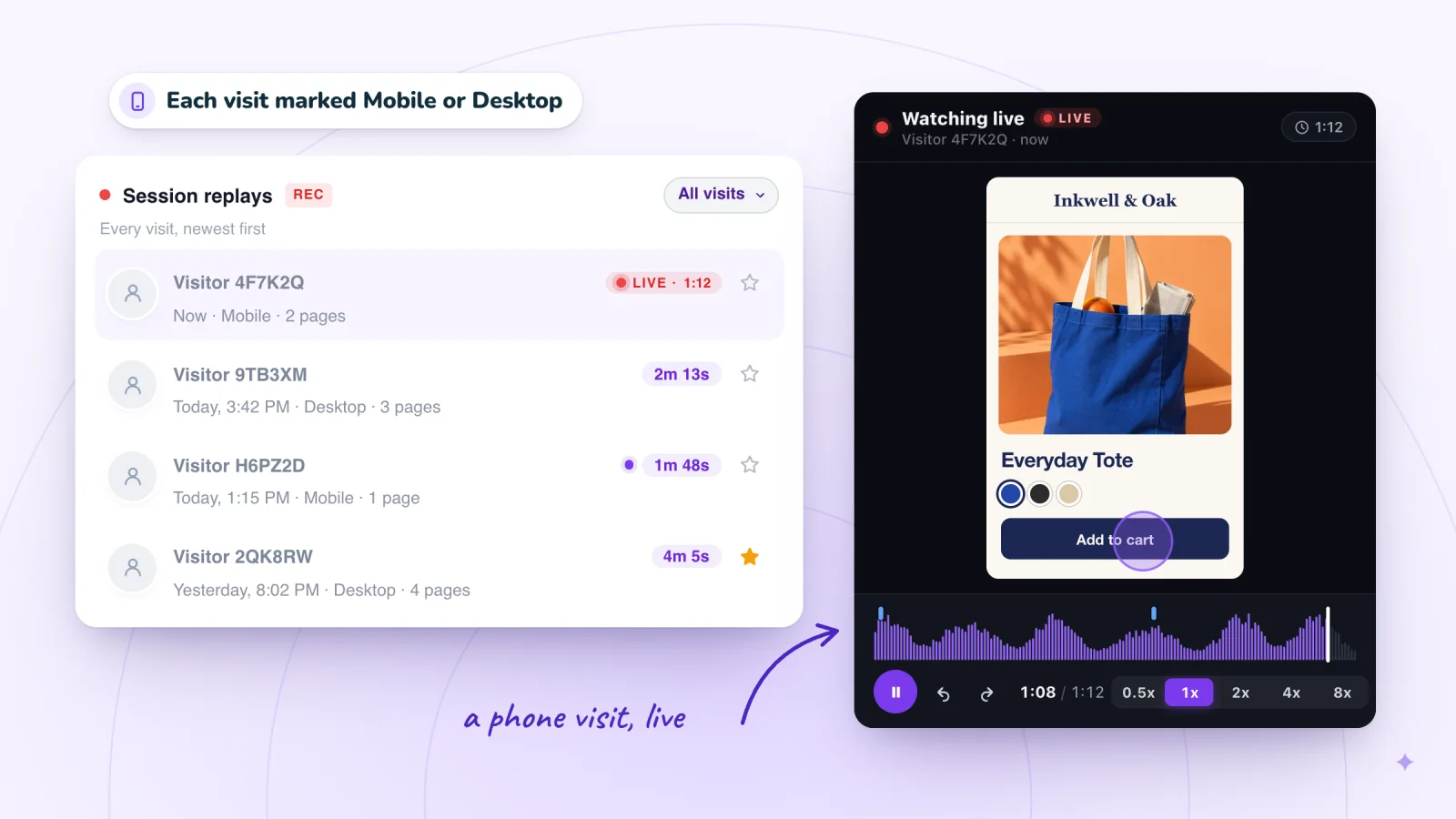
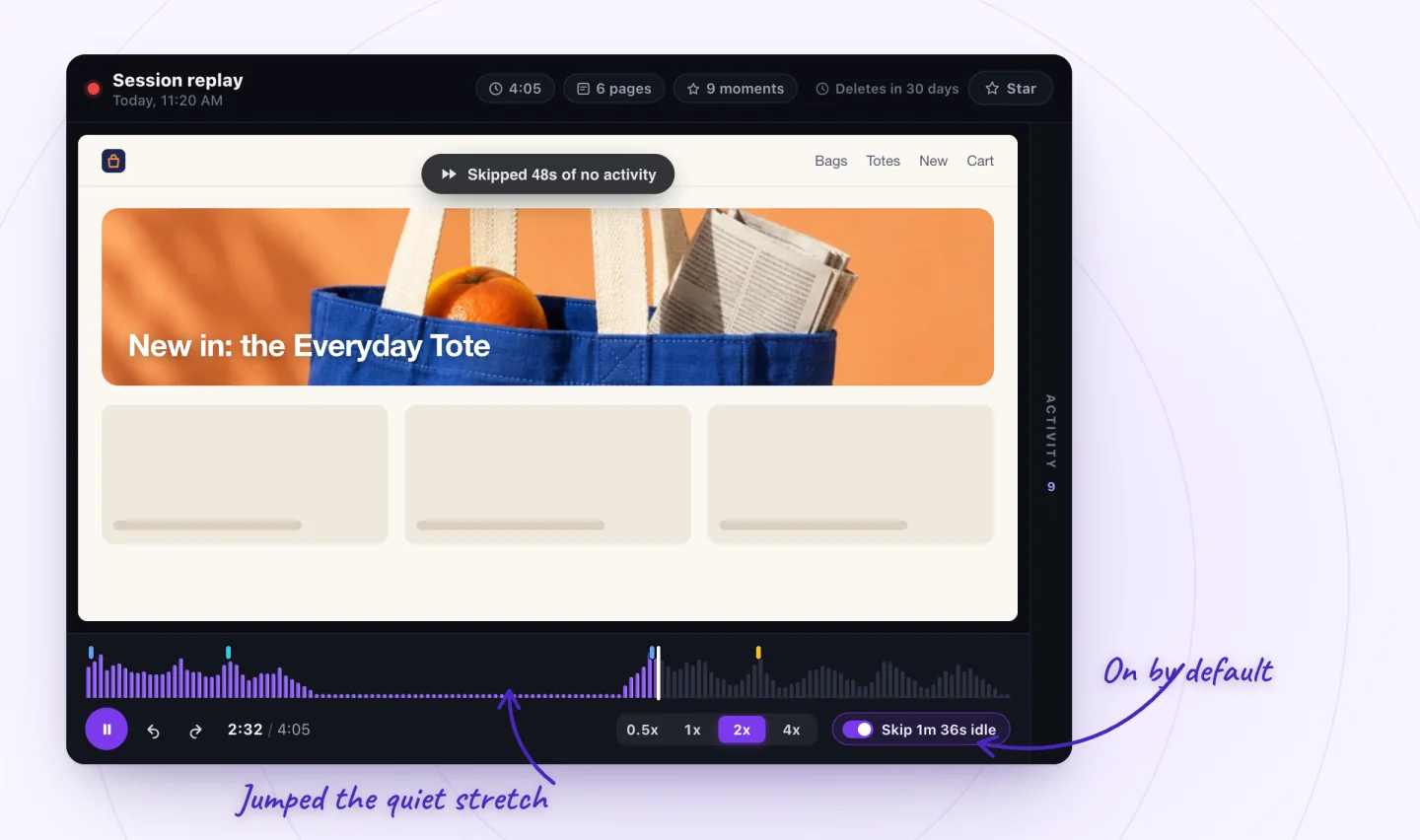
A session replay is one visit rebuilt from the page itself, not filmed, so there's no video, audio or camera. What session recording is explains how it works. In Session Recordings, each replay plays beside an Activity list, the visit's moments in order, and clicking a row jumps the replay there.
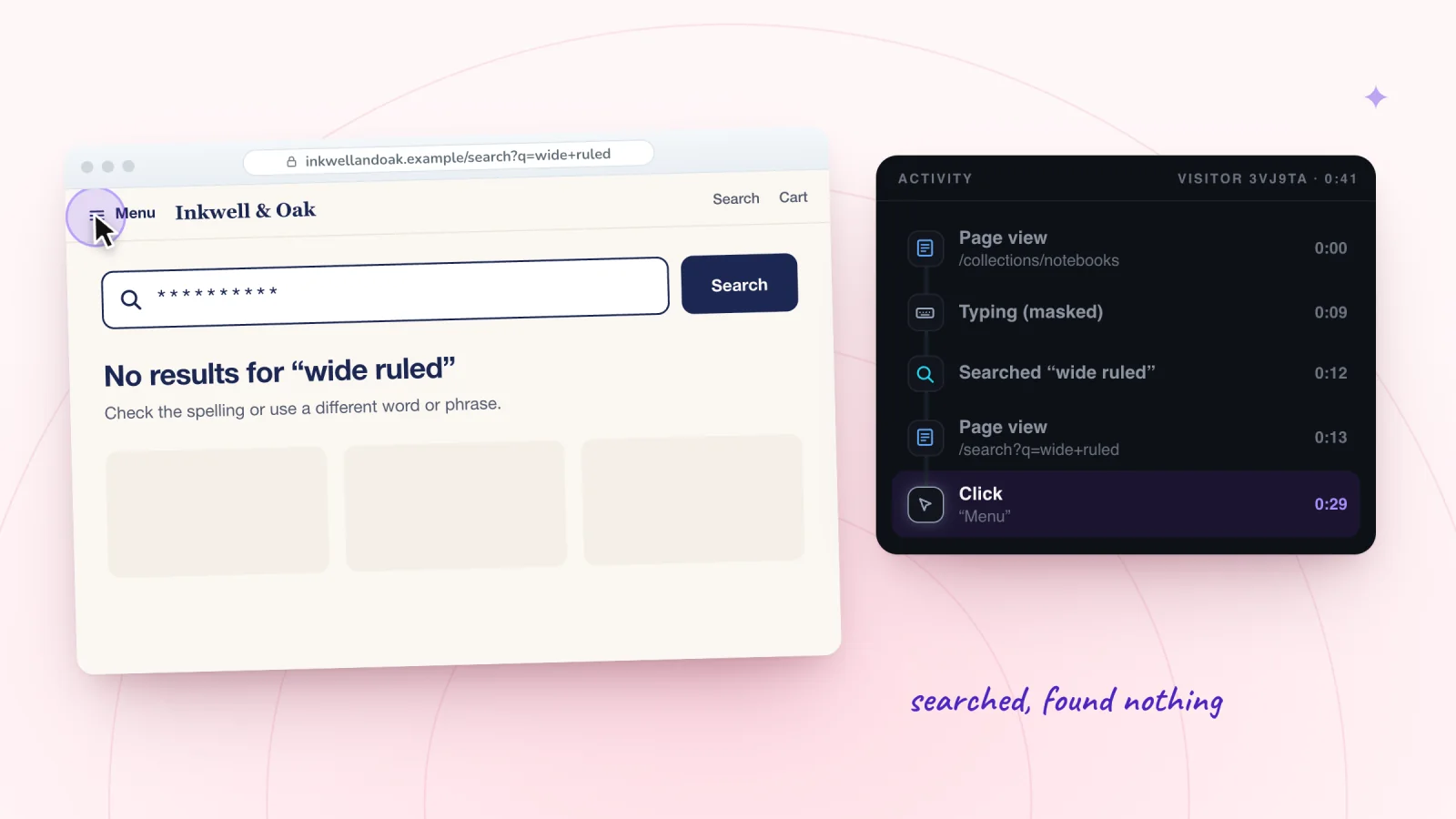
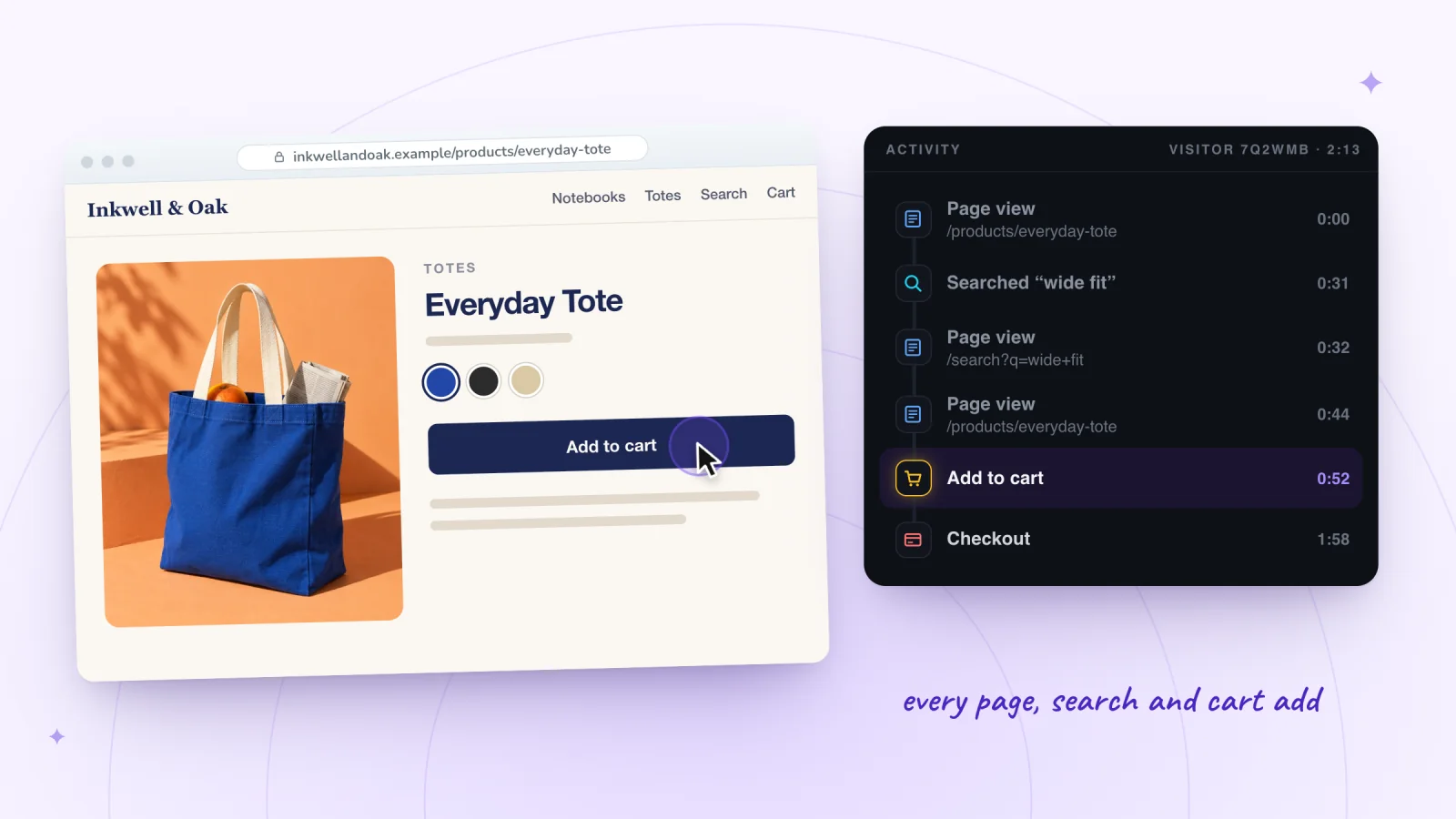
On a Shopify store, the list has a Page view row for each page, with its address, each click, Typing (masked) where the shopper typed into a form field, a Searched row with the words they used, and Add to cart and Checkout rows. Some themes' buttons, and express checkout buttons, show up as plain clicks instead, so check the clicks near your buy buttons too. The words a shopper submits in your store's search show in the replay too, so you can see what they looked for and what they did next.
What a replay leaves out matters as much:
- Checkout. Shopify doesn't let app embeds load on checkout pages, so checkout, its thank-you page and customer account pages are never recorded. A replay ends at the press of Check out.
- Purchases. They aren't marked, and a replay isn't linked to an order, so count purchases in your reports.
- Names. Nobody is named: the list shows each shopper as Visitor plus a short code, because the app doesn't read your customers. Text the page itself shows, such as a name in a greeting, appears as the shopper saw it.
Comparing replay apps? Free session recording apps for Shopify sets out what each app on the Shopify App Store records for free.
Session recordings, private by default
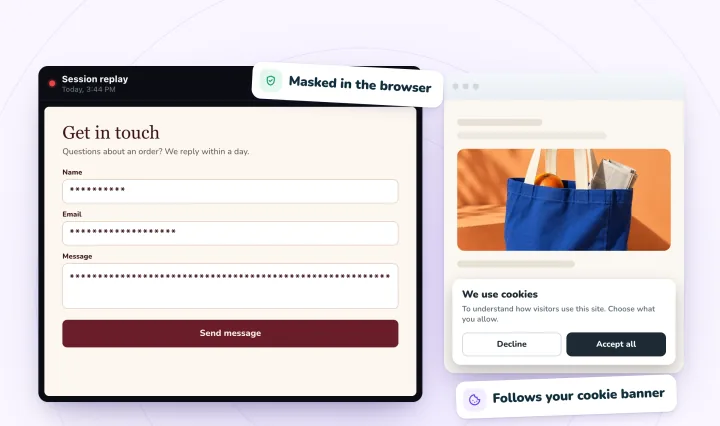
Form typing is masked in the visitor's browser, and recording follows your store's cookie consent. Free forever.
Put them together
Here's the routine, with Inkwell & Oak's numbers from above.
- Find the step that loses sessions. In Analytics › Reports, open Conversion rate breakdown for the last 30 days and compare each step with the month before. For Inkwell & Oak, it's the move from cart to checkout.
- Open replays from those days. In Session Recordings, open visits from the same dates. Keep the ones with an Add to cart row and no Checkout row.
- Start a few seconds early. Click the Add to cart row and play forward from a few seconds before it; if your theme's button shows as a plain click, start from that click.
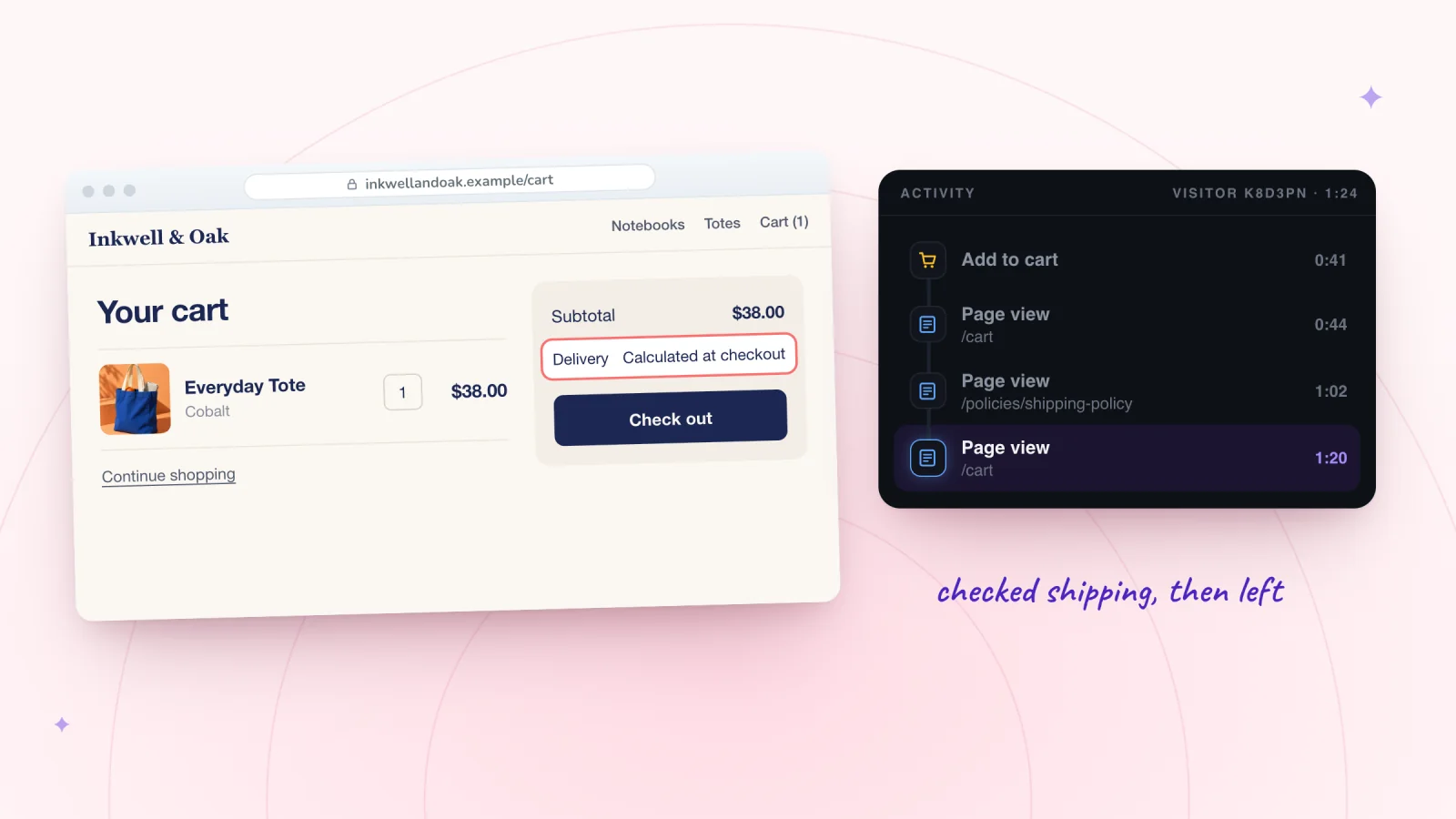
- Watch about ten and note what repeats. Write one line per visit: the page, the moment and what the shopper did. At Inkwell & Oak, six of ten opened the shipping policy from the cart and left.
- Star the clearest replays. Starred replays are kept past the usual 30 days, so the evidence is still there after the fix.
- Fix one thing. Inkwell & Oak added its delivery costs to the cart page.
- Check the report again. After two weeks, compare the share of carts that reach checkout with the weeks before the fix. If it moved, keep the change; if it didn't, watch ten more visits.
The checklist for your first 20 replays lists what else to look for, and why shoppers abandon carts on Shopify covers the usual causes at the cart.
What a consent banner changes
On Shopify, Session Recordings reads each visitor's choice through Shopify's Customer Privacy, which Shopify's cookie banner and consent apps connected to it report to. Where your store asks, a shopper is recorded only after allowing analytics, and one who withdraws consent stops being recorded. If your store doesn't ask for cookie consent, recording doesn't wait for it: every visitor who clicks, taps or types is recorded.
Your reports change too. Shopify's help says that where its cookie banner shows, data that isn't essential is collected only after a visitor consents, which can show up as fewer sessions and lower session-based numbers, conversion rates included. So read both as a sample: good for finding where things go wrong, not for counting people. To set the banner up, see session replay privacy and GDPR.
Frequently asked questions
Can I see what customers click on my Shopify store?
Shopify's reports count sessions and the steps they reach. To see the clicks themselves, use a session recording app: Session Recordings replays each visit with every click and tap in order, and its heatmaps add up one page's clicks across many visits, with rage clicks and clicks that did nothing marked.
Can I see who is on my store right now?
Live View, under Analytics › Live View, counts the visitors active in the past 5 minutes and shows where they are on its map. In Session Recordings, visits still in progress are marked LIVE, and you can follow one a few seconds behind; each shopper shows as Visitor plus a short code. Who visited your Shopify store covers what each tool shows about visitors.
Can I see what customers searched for?
Yes. Searches by search query lists the words shoppers search for, and Searches with no results the searches that found nothing. In a replay, the words a shopper submits show too, so you can watch what they did next. Finding what shoppers can't find goes further.
Can I watch what customers do at checkout?
Not in a replay. Shopify doesn't let app embeds load on checkout pages, so Session Recordings never records checkout, its thank-you page or customer account pages, and a replay ends at the press of Check out. For checkout itself, Sessions that reached checkout and Sessions that completed checkout in Conversion rate breakdown show how many got through.
Is it legal to record what customers do on my store?
It can be, when shoppers are told and, where the law requires it, asked first. Name recordings in your privacy policy, and turn on Shopify's cookie banner for visitors from places that require consent. Session replay privacy and GDPR covers it in plain language; it's general information, not legal advice.
Try it on your store
Session Recordings records visits to your Shopify store, free forever: 2,000 recordings a month, each kept 30 days, with nothing charged to your Shopify bill. Switch on its Session recorder in your theme editor, click Save, and recording starts with the next visit. See session replay for Shopify and Wix, or session recording for online stores for the store side.

Sources
Shopify's help and developer pages, checked October 29, 2026:
- Shopify Help: Live View
- Shopify Help: Analytics
- Shopify Help: Acquisition reports
- Shopify Help: Behavior reports
- Shopify Help: Customers
- Shopify Help: Configuring customer privacy settings
- Shopify Dev: Configure theme app extensions

We build marketing apps for online stores: myuser.ai writes and sends emails and texts from a store's own products, and we make Session Recordings and Spin Wheel, free apps for online stores. Product details in our guides are checked against the apps themselves.