On this page
Shopify's search reports show what shoppers can't find: Searches by search query lists the words they search for, and Searches with no results lists the searches that found nothing. Fix those by putting shoppers' words where Shopify's search looks, then watch replays of the searches that still miss to see what shoppers did next.
Someone types "wide ruled" into your store's search, gets nothing and leaves, while your notebooks with 8 mm lines sit in the catalog under "lined". Searches are the one place shoppers tell you what they want in their own words, and Shopify keeps a record of them.
Key takeaways
- Open Searches with no results and Searches with no clicks in Analytics › Reports each month, and work through the busiest terms.
- A Shopify search can miss because every word must match, the shopper's word isn't in the fields search looks at, or the product is Unlisted.
- Fix a zero-result term by adding the shopper's word to the product's title, description, product type or tags, then search for it on your live store.
- Search & Discovery adds filters for collection pages and search results, and product boosts that rank chosen products higher for up to 10 search terms each.
- In a replay, the words a shopper submitted show, so you can watch what they did after a search that missed.
Where Shopify lists what shoppers search for
Open Analytics › Reports in your Shopify admin and set the Category filter to Behavior. Four reports cover search:
- Searches by search query lists the search terms shoppers used in your online store.
- Searches with no results lists the terms that returned nothing.
- Searches with no clicks lists the terms that returned results nobody clicked.
- Search conversions over time shows how effective your store's search is over the dates you pick.
Which reports you can open depends on your Shopify plan.
Treat a term with no clicks like a term with no results: the search found something, and it still failed. Once a month, take the five busiest terms from each of the two lists and work through those ten.
Why a Shopify search finds nothing
Either you don't sell what the shopper wants, or you do and their words don't match yours. Shopify's help on search behavior explains how it matches:
- Every word has to match. By default, Shopify treats search terms as having AND between them, so "wide ruled notebook" finds only products that match all three words.
- It looks in certain fields. A product's title, description, product type, tags and vendor, and its variants' titles, SKUs and barcodes.
- It forgives a little. Typo tolerance tries to fix words that differ from the search term by one letter, search tries both singular and plural forms, and it tries to match partial words, though complete words match most reliably.
- Unlisted products can't be found. A product with the Unlisted status doesn't appear in your online store's search.
So "wide ruled" finds nothing at Inkwell & Oak, a made-up store, because neither word appears in the notebooks' titles, descriptions, types or tags.
Fix zero-result searches
Put the shopper's words where search looks:
- In the title, when the word is how most people would name the product: "Notebook, wide ruled (8 mm)".
- In the description, in a natural sentence: "Wide ruled, with 8 mm between the lines."
- In the product type or a tag, when the word covers a group of products, such as "journal" for every notebook.
Different words for the same thing work the same way. If your log shows "journal" and your products say "notebook", add "journal" to the description or a tag once.
Watch shoppers from product page to cart
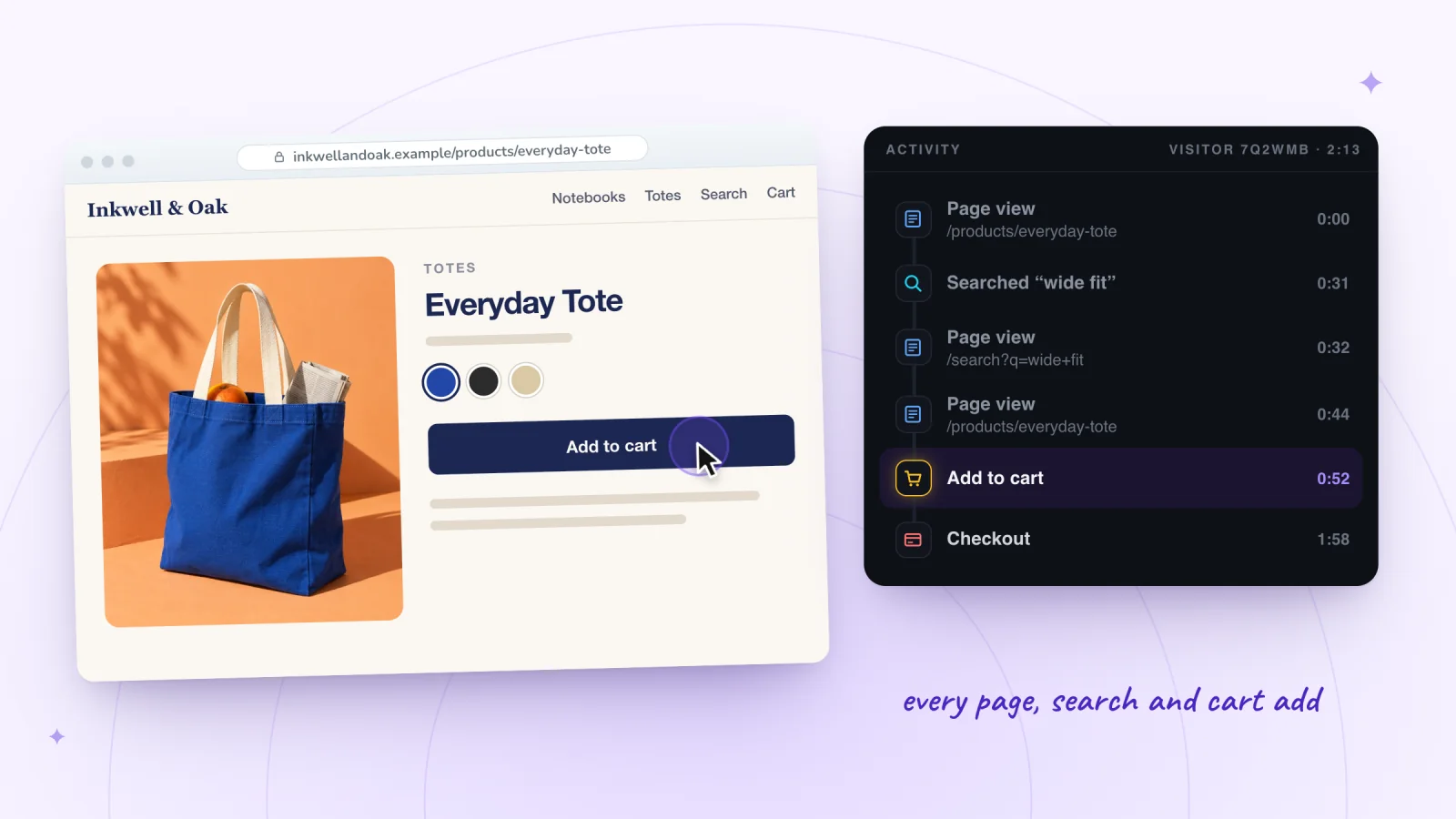
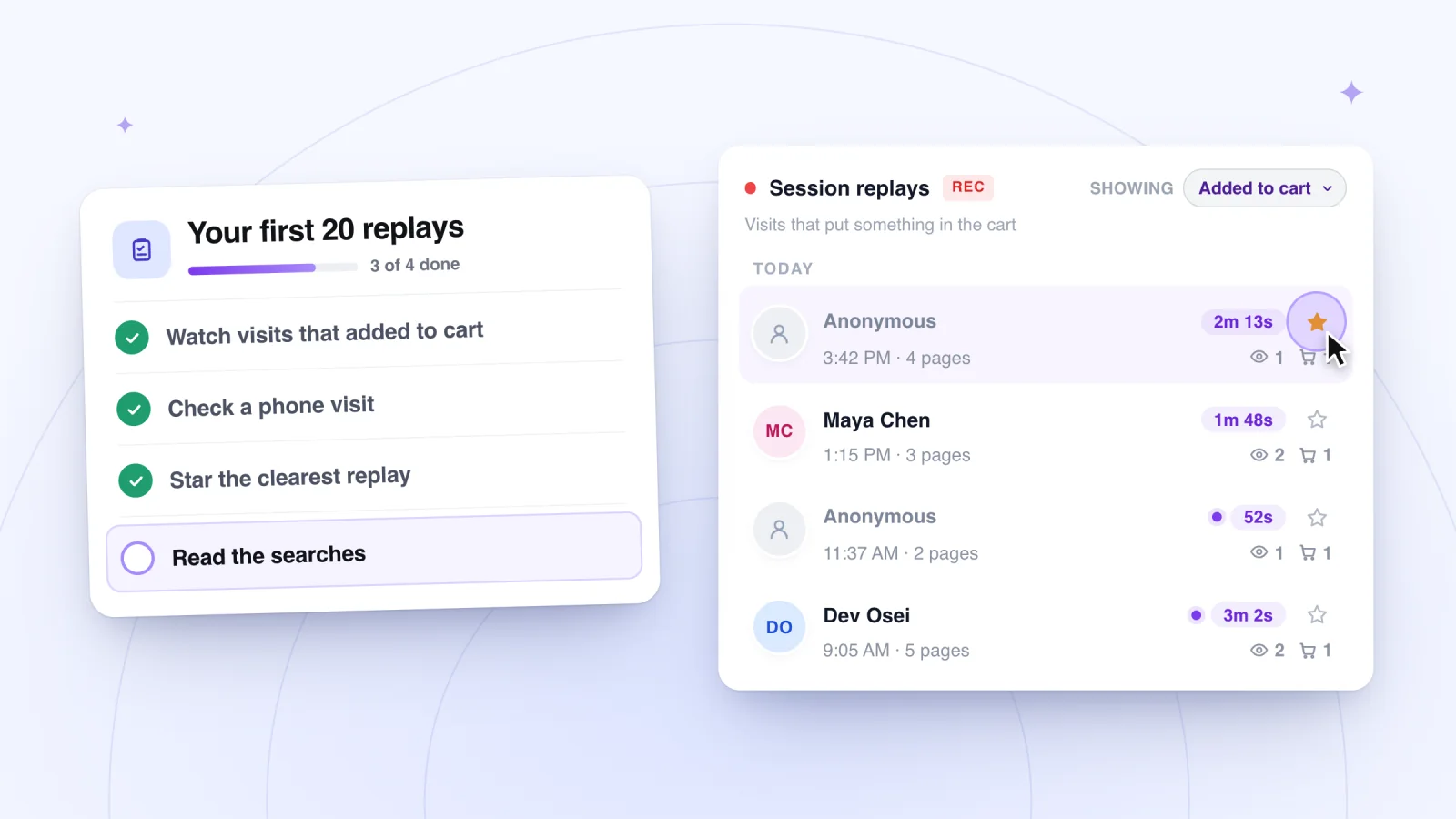
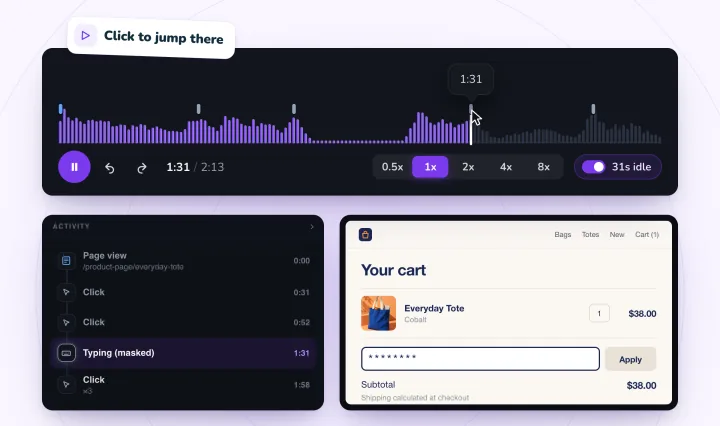
Jump to each Add to cart and Check out press (some themes' buttons show as plain clicks), with form typing masked. Free forever: 2,000 recordings a month.
Filters and boosts with Search & Discovery
Shopify's Search & Discovery app adds two tools for search results:
- Filters let shoppers narrow collection pages and search results by availability, category, price, product type, tags and vendor, by product options such as size or colour, or by metafields. Your theme has to support filtering for them to show, and Shopify says the Menus page in your admin shows whether it does.
- Product boosts rank chosen products higher for search terms you add, up to 10 per boost. In your admin, go to Apps › Search & Discovery, click Search, then Product boosts, and Create product boost. Boosts apply only to products that are available for sale.
Online store search also includes what Shopify calls semantic understanding, which widens results with related words and categories. It's built in, so there's nothing to turn on.
What a replay adds
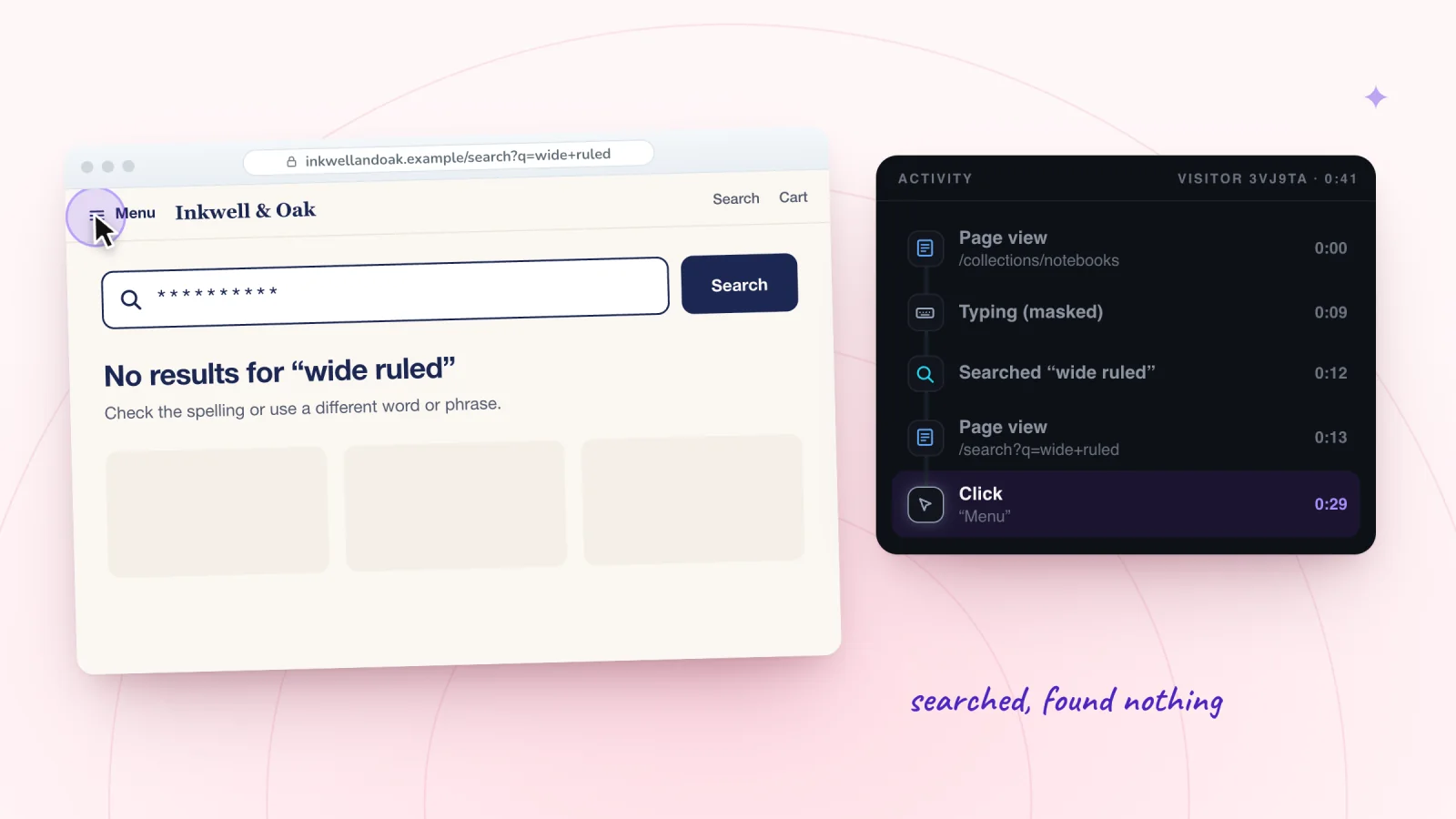
A report tells you what was searched. A replay shows what happened next: whether the shopper clicked a result, tried another search, opened the menu or left. On a Shopify store, the words a shopper submits in its search show in the replay, in a Searched row in the Activity list. What they type into the box before submitting is masked like any form field.
Click the Searched row to jump to the search and play forward. At Inkwell & Oak, a shopper searched "wide ruled", got no results, opened the menu, went to Notebooks, scrolled past three pages and left. The notebook they wanted was on the second page.
Keep a search log
A short log keeps the monthly check quick and shows whether each fix worked.
| Month | Search | Results? | What shoppers did next | Fix | Checked |
|---|---|---|---|---|---|
| October | wide ruled | None | Opened the menu, left from Notebooks | Added "wide ruled" to the description | Finds 3 notebooks |
| October | gift wrap | Results, no clicks | Searched again for "gift box" | Added a Gift wrap tag to the boxed sets | Clicks now |
| November | a5 planner | None | Left | Added "A5" to two planners' titles | Finds 2 planners |
The rows are made-up examples. Fill in "What shoppers did next" from two or three replays of each search, not from the report alone.
Frequently asked questions
Where can I see what customers search for on Shopify?
In Analytics › Reports, set the Category filter to Behavior: Searches by search query lists what shoppers searched for, and Searches with no results the searches that found nothing. Searches with no clicks and Search conversions over time sit beside them.
Why does my Shopify search show no results?
Usually because a word the shopper used isn't in any product's title, description, product type, tags, vendor or variant details, or because search needs every word to match. A product with the Unlisted status never appears. Add the shopper's word to the product and search for it again on your live store.
Can I see exactly what a shopper typed into my search box?
You can see what they submitted. Session Recordings shows the words a shopper submits in your store's search, so you can see what they looked for and what they did next. What they type before submitting is masked like any form field.
Does a replay show which search result a shopper clicked?
Yes, as a click on the results page, followed by the product page they opened. If they clicked nothing, the replay shows where they went instead, which is often the more useful part.
Try it on your store
Session Recordings shows what shoppers did after each search, free forever: 2,000 recordings a month, each kept 30 days. Switch on its Session recorder in your theme editor and click Save. See session recording for online stores, or how to see what customers do on your Shopify store for the whole routine.

Sources
Shopify's help pages, checked October 29, 2026:
- Shopify Help: Behavior reports (search reports)
- Shopify Help: Analytics
- Shopify Help: Search behavior in your online store
- Shopify Help: Storefront search
- Shopify Help: Adding filters with Shopify Search & Discovery
- Shopify Help: Modifying search with Shopify Search & Discovery (product boosts, semantic understanding)

We build marketing apps for online stores: myuser.ai writes and sends emails and texts from a store's own products, and we make Session Recordings and Spin Wheel, free apps for online stores. Product details in our guides are checked against the apps themselves.