On this page
- Can you do A/B testing on Wix?
- Which A/B testing tools work on Wix?
- What sample size do you need for an A/B test?
- How long should an A/B test run?
- How do you A/B test with low traffic?
- Test site, testing tool or before-and-after?
- Run a before-and-after check with replays
- Frequently asked questions
- Try it on your site
- Sources
Wix can split your traffic between two versions of your site, with its test sites or a testing tool added through Custom Code, but a small site rarely gets enough visitors for an A/B test to give a reliable answer. Catching a rise from 2% to 2.4% of visitors buying takes nearly 20,000 visitors for each of the two versions: about 13 months of traffic for a site with 3,000 visitors a month. With less traffic than that, compare equal weeks before and after one change, and watch session replays from both sides.
Key takeaways
- Wix's test sites show a new version of your site to a percentage of visitors you choose, but Wix's help describes no report that compares the two versions.
- Testing tools such as Wingify (VWO), Convert, Crazy Egg and Zoho PageSense install through Custom Code, which Wix allows only on a published site with a connected domain, so on a Premium or Studio plan.
- At a 2% conversion rate, catching a rise to 2.4% takes 19,600 visitors per version by a common rule of thumb, so 39,200 in all: about 13 months for a site with 3,000 visitors a month.
- On low traffic, compare equal whole weeks before and after one change and watch replays from both sides; it shows whether visitors use the change, but it isn't a controlled test.
Can you do A/B testing on Wix?
Partly. Wix's test sites let you publish a second version of your site to a percentage of visitors, from 0 to 100, in the Wix Editor, Wix Studio and Wix Harmony. That splits your traffic, but none of Wix's help articles on test sites describes a report that compares the two versions, so judging the result is up to you.
Wix presents test sites as a way to check changes on a small share of visitors before everyone sees them. From Wix's help:
- One test site at a time. To try another version, you discard the current one first.
- One percentage for everyone. The share covers desktop and mobile, every browser, location and language. You can't aim a test site at phones, one country or one language.
- Manual exposure. You change the percentage yourself in the Release Manager. It can't change on a schedule.
- Live data is shared. Wix warns that features holding data may not work on a test site, and its developer docs say a test site works with the same live data as your published site.
- Publish or discard. Publishing sets the exposure to 100% and replaces your live site. A discarded test site can't be published later.
Wix's help on test sites names no plan requirement. The one condition it states is that your site has been published at least once.
How to set up a Wix test site
- Publish your site if you haven't yet, then make your change in the editor.
- Create the test site. In the Wix Editor, click Site, then Deploy Test Site. In Wix Studio, click the arrow next to the Preview icon, then Preview as Test Site, then Create Test Site. In Wix Harmony, open the Wix menu at the top left, hover over Site Actions and click Preview as Test Site.
- Go to the Release Manager in your site's dashboard, click the More Actions icon next to the test site and click Edit exposure.
- Enter the percentage of visitors who should see the test site, from 0 to 100, and click Save.
- When you've decided, open the test site's menu in the Release Manager and click Publish this version to make it your live site, or Discard to drop it.
In Wix Studio, this also sets your Preview button to open the test site until you switch it back with the same arrow.
Which A/B testing tools work on Wix?
Wingify (VWO), Convert, Crazy Egg and Zoho PageSense all publish Wix guides, and each runs from a script in your site's head. They install through Custom Code, which Wix allows only on a published site with a connected domain, and connecting a domain needs a Premium or Studio plan. The tool splits visitors, counts your goal for each version and reports the result.
What each one's Wix guide and pricing page say:
- Wingify (VWO). VWO now goes by its company's name, and vwo.com redirects to wingify.com. Its Wix guide, written for Wix Enterprise sites, puts the SmartCode in the head through Custom Code, for tests of text, images, layout, form fields and buttons, not server-side tests. Pricing is custom, by monthly active users, after a 30-day free trial.
- Convert. Its Wix guide says the integration needs a connected domain and a Wix Premium plan, with the code in the head on each new page. Plans start at $299 a month billed yearly, or $399 billed monthly, after a 15-day free trial.
- Crazy Egg. Its Wix guide puts the script in the head on each new page, on sites with a connected domain. A/B testing is listed from its Plus plan, $99 a month billed yearly, after a 30-day free trial.
- Zoho PageSense. Its Wix guide notes that Wix allows tracking code only on Premium sites with a connected domain, and loads the snippet once, in the head. A/B testing is in its Enterprise plan, not Forever Free, after a 15-day free trial.
Two things on Wix can quietly skew or stop such a test:
- Consent decides who's in the test. Wix files custom code as Essential, loaded before a visitor's cookie choice, until you pick another type on its Code Type tab, and it says picking the right type is your responsibility; Wingify's guide says its SmartCode starts as Essential too. Filed as Analytics or Functional, the tool waits for consent, so visitors who decline see your original page and stay out of the results.
- Check the tool still runs. Wix's custom code help says that since December 2025 its frontend security can block snippets that used to work until the provider updates them. Preview a variation on your live site before trusting a result.
Is Google Optimize still available?
No. Google says Google Optimize and Optimize 360 are no longer available as of September 30, 2023, and any experiments still running that day ended. Google pointed instead to the A/B testing providers it was building Google Analytics integrations with: AB Tasty, Optimizely and VWO.
What sample size do you need for an A/B test?
It depends on your conversion rate now and the smallest lift you want to catch. A rule of thumb from Evan Miller and from Kohavi and colleagues, for 95% confidence and 80% power, is 16 × p × (1 − p) ÷ δ² visitors per version: at a 2% conversion rate, catching a rise to 2.4% takes 19,600 per version.
Here p is your conversion rate as a decimal, so 2% is 0.02, and δ is the difference to detect. Kohavi and colleagues count the result per variant, so a test of two versions needs twice as many visitors in all.
A worked example for a small site
Say 2 of every 100 visitors buy or send an enquiry, a 2% conversion rate, and you hope a new headline lifts that to 2.4%, an improvement of a fifth. Say the site gets 3,000 visitors a month. (These are example numbers, not benchmarks.)
| Step | Arithmetic | Result |
|---|---|---|
| Conversion rate now, p | 2 ÷ 100 | 0.02 |
| Lift to catch, δ | 0.024 − 0.02 | 0.004 |
| p × (1 − p) | 0.02 × 0.98 | 0.0196 |
| δ² | 0.004 × 0.004 | 0.000016 |
| Visitors per version | 16 × 0.0196 ÷ 0.000016 | 19,600 |
| Visitors in the whole test | 19,600 × 2 | 39,200 |
| Months at 3,000 visitors a month | 39,200 ÷ 3,000 | About 13 |
Evan Miller's sample size calculator, set to the same 2%, a 20% relative lift, 80% power and 5% significance, gives 19,784 per variation, close to the rule of thumb.
A smaller lift costs far more. To catch a rise from 2% to 2.2%, δ is 0.002 and δ² is 0.000004, so each version needs 16 × 0.0196 ÷ 0.000004 = 78,400 visitors: 156,800 in all, more than four years at 3,000 a month.
Turn the formula around to see what one month can catch. With 3,000 visitors split two ways, 1,500 per version, the smallest lift the test would detect 80% of the time is δ = 4 × √(0.0196 ÷ 1,500) ≈ 0.0145: from 2% to about 3.4%, a jump of over 70%. A real lift of a fifth would usually go undetected in that month.
Find the moments worth watching
Jump to any moment from the Activity list, skip the quiet parts, watch at up to 8x and star the replays worth keeping.
Add to site, it's free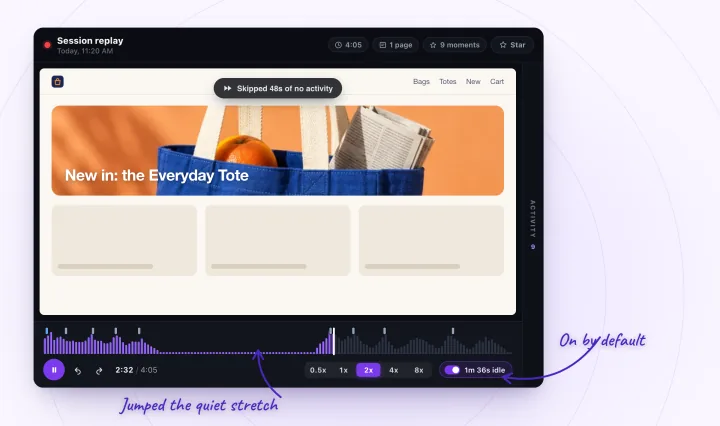
How long should an A/B test run?
Until it reaches the sample size you chose before it started, and for at least one full week, so every day of the week is in it. Optimizely says to run tests for at least one business cycle of seven days. Kohavi and colleagues recommend at least a week or two, then whole weeks, so day-of-week effects can be analyzed.
Don't stop the moment a result looks significant. Evan Miller shows that checking a running test and stopping on a good-looking result inflates false positives: check ten times, and what reads as 1% significance is really 5%. Fix the sample size in advance, and judge the result once it's reached.
How do you A/B test with low traffic?
Make each test easier to read: test a bigger change, measure a step that happens more often than a sale, and run it where most of your visitors already go. That's the gist of Optimizely's advice for low-traffic sites:
- Test big changes. A bold change is more likely than a small tweak to produce a difference large enough to measure.
- Measure a nearer step. Count clicks on Add to Cart rather than completed orders, which are rarer.
- Test where the traffic is. Site-wide elements and landing pages collect visitors faster than one product page.
- Stick to two versions. Every extra variation splits the same traffic further.
- Lower the bar knowingly. A lower significance setting needs fewer visitors but declares more false winners.
Test site, testing tool or before-and-after?
Use a testing tool when your traffic can reach the sample size within a few weeks, a Wix test site when you want a change seen by a few visitors before everyone, and a before-and-after check when neither is realistic.
| Wix test site | Testing tool | Before and after | |
|---|---|---|---|
| Splits visitors | Yes, by a percentage you set | Yes | No, everyone sees one version at a time |
| Reports a winner | Not described in Wix's help | Yes | No, you compare the two periods yourself |
| Wix plan needed | None named in Wix's help | Premium or Studio plan and a connected domain | None for Wix Analytics |
| Cost | Included in Wix | Paid plans, after a free trial | Free with Wix Analytics |
| Best for | Showing a change to a few visitors first | Sites that reach the sample size in weeks | Low traffic, as a hint rather than proof |
Run a before-and-after check with replays
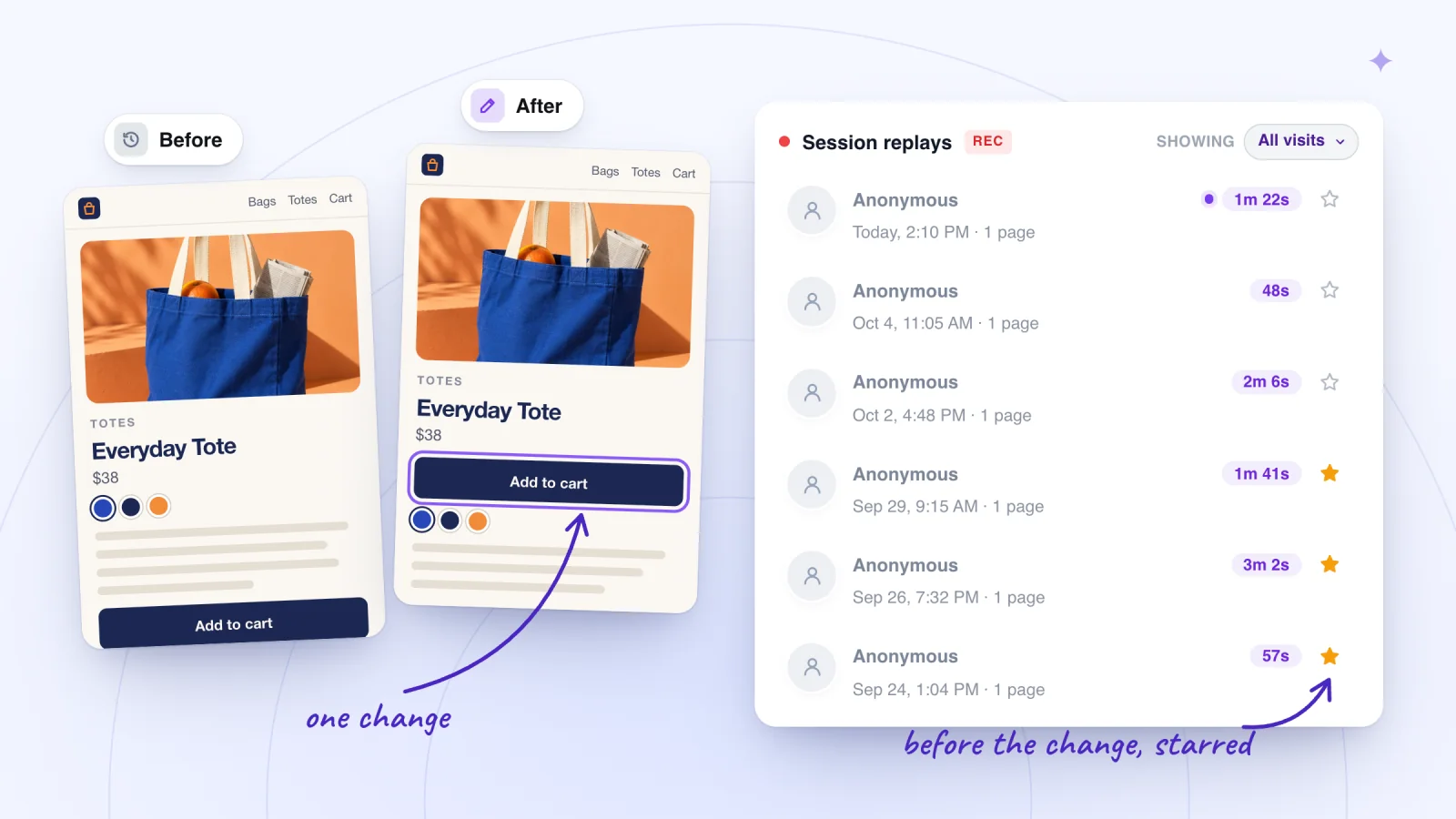
Compare the same number of whole weeks before and after one change in Wix Analytics, and watch session replays from both sides to see whether visitors notice and use what you changed. It isn't a controlled test, so treat the result as a strong hint rather than proof.
- Pick one change and the number it should move. In Wix's reports, that's Button Clicks over Time for a button, Form Submissions over Time for a form, Order Conversion over Time for a store or Page Visits for a page's bounce rate.
- Check that you have at least two whole weeks of that number before the change, with no other change to the page and no one-off sale or campaign. Button clicks count only after you click Enable Click Tracking in the Button Clicks report, so for a button, turn it on and wait.
- Watch about ten replays of visits to the page from those weeks, noting whether each visitor reached the part you'll change, used it and where they went next. In Session Recordings, a visit that started on that page shows its address in the first Page view row; for the rest, play at 4x until the page comes on screen. Star each one, because unstarred replays are deleted after 30 days.
- Make the change and note the date and time.
- Wait the same number of whole weeks, without starting a sale, email or ad campaign you didn't run before.
- Set the report's dates to the weeks after the change, then under Compared to choose Previous period to set the same length of time before it alongside, or set the dates to each period in turn. In an over-time report, group by week to check that the change held after its first week.
- Watch about ten replays from the weeks after, with the same notes, and set them beside the starred ones.
- Keep the change if the number and the replays agree and nothing else explains it. Otherwise, undo it or try a bigger change.
Wix itself suggests the Button Clicks over Time report for testing different buttons and seeing how clicks change over time. How to watch replays without losing hours keeps ten visits to a short sitting.
What to watch in the replays
The number says whether something moved; the replays show whether it moved for the reason you think. On each side, look for:
- Whether they reach it. Does the visitor scroll to the part you changed, or leave before it comes on screen?
- Whether they use it. A click or tap on the new button or link shows up in the Activity list with its time, so you can jump straight to it.
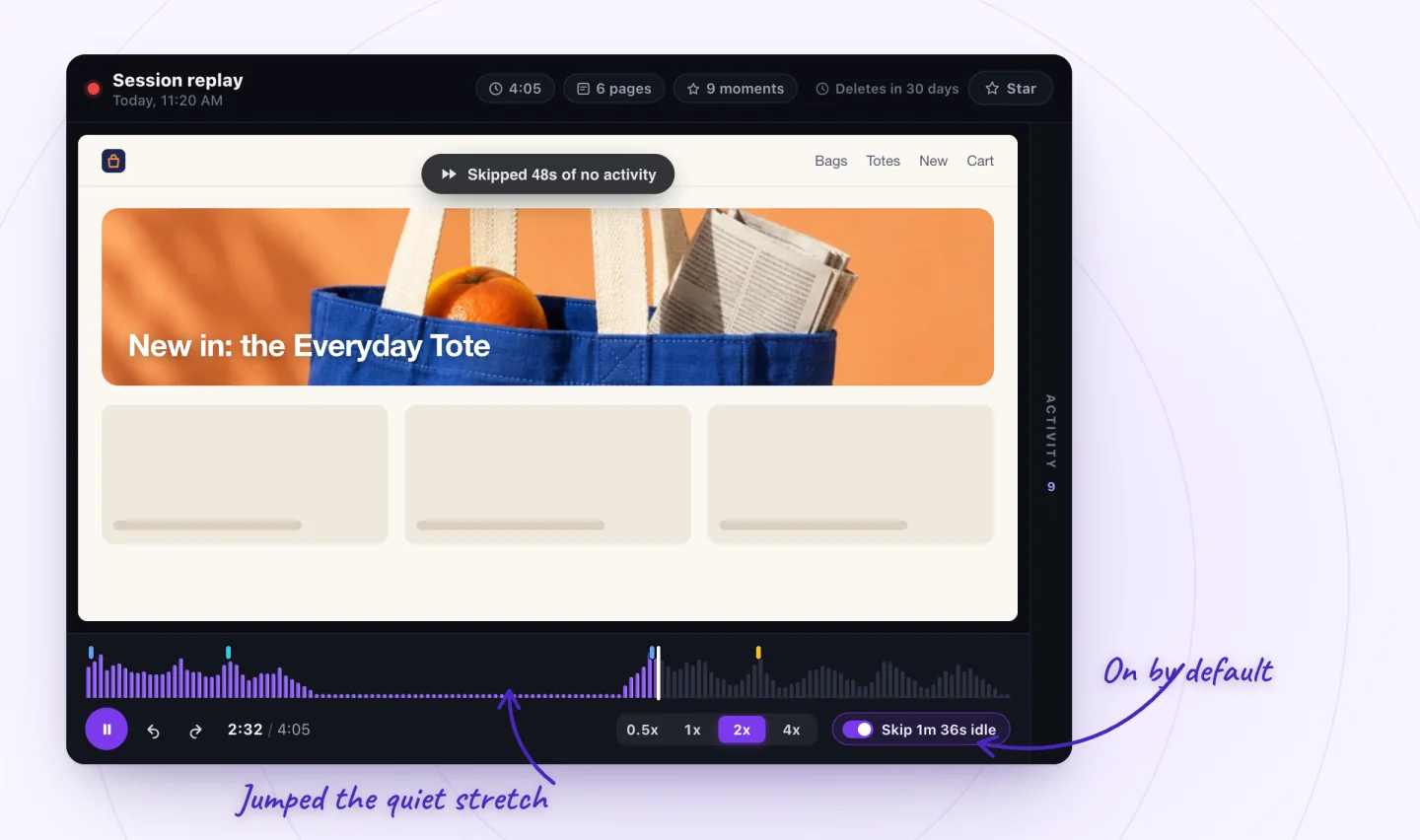
- Hesitation. Long pauses, or scrolling up and down around the change, suggest it still isn't clear. With Skip idle on, a pause of more than 10 seconds is jumped, and a notice says how long it was.
- Repeated clicks. A run of quick clicks merges into one Click row with a ×N count. Check whether the thing they clicked responded.
- What happens next. The next page they open, or the moment they leave.
- Phones. Phone visits play back at the phone's size, so check the change where it's hardest to see.
Session replay vs heatmaps vs analytics has a ten-visit tally to copy, with a rule of thumb for which differences mean something at that size.
What a before-and-after check can't tell you
Whether the change caused the difference. Anything else that changed between the two periods is mixed in: Kohavi lists external events, weekends, holidays and seasonality as what a before-and-after comparison misses. Check these:
- Seasonality. Compare whole weeks, don't let a holiday or sale fall in one period but not the other, and use Compared to: Previous year to see whether the same weeks moved last year.
- Novelty. Returning visitors may click something just because it's new. Kohavi and colleagues call this a newness bias that can mean running for several weeks, so check whether the change holds in its second week.
- Campaigns. An email, sale, ad or social post changes who visits. Wix's Traffic Overview shows sessions by source and category, and new versus returning visitors, for each period.
- Your cookie banner. With a banner, Wix's reports leave out visitors who haven't accepted cookies, and Session Recordings follows the same banner. Change it mid-comparison and the two sides count different people.
- Replays aren't a count. Session Recordings saves a visit only once the visitor clicks, taps or types, and ten replays a side show what people do, not how often. Take rates from Wix's reports; why tools count visits differently explains the gaps.
Frequently asked questions
Does Wix Studio have A/B testing?
Not as a full A/B test. Like the Wix Editor, it has test sites that show a new version to a share of visitors, but Wix's help doesn't describe a report that compares the two versions. To create one, click the arrow next to the Preview icon, choose Preview as Test Site and confirm with Create Test Site, then set the share in the Release Manager. To judge the result, use a testing tool through Custom Code or a before-and-after check.
Can I A/B test on a free Wix site?
Not with a testing tool. Wix runs custom code only on a published site with a connected domain, and connecting a domain needs a Premium or Studio plan. Wix's help on test sites names no plan requirement; the condition it gives is that the site has been published at least once.
What is the novelty effect in A/B testing?
It's extra interest in something just because it's new, which fades as people get used to it. Researchers studying experiments at Microsoft describe novelty as an eagerness to try something new that wears off over time. It can make a change look better in its first days than it turns out to be, so run tests and before-and-after checks over whole weeks.
How do you compare before and after a change without a control group?
Compare the same number of whole weeks on each side, keep sales and campaigns the same, check last year's numbers for the same weeks and change one thing at a time. Then treat the result as a hint: without a control group running at the same time, anything else that changed in between is mixed in.
Is A/B testing worth it for a small business?
When your traffic can answer the question within a few weeks, yes. Run the sample-size arithmetic first. If a test would take months, spend that time finding problems instead, with replays or a five-person usability test, and check each fix before and after.
Try it on your site
Session Recordings shows what visitors did on each side of a change: clicks listed beside the replay, typing masked and quiet stretches skipped, with a star to keep the visits you'll compare later. It's free for 2,000 recordings a month. See session replay for Wix sites, or what's free.

Sources
All checked October 5, 2026.
- Wix: About Test Sites
- Wix: Test Sites: Creating a Test Site
- Wix: Editing the Exposure of a Test Site
- Wix: Test Sites: Accessing the Release Manager
- Wix: Publishing a Test Site
- Wix: Discarding a Test Site
- Wix: Request: Creating Multiple Test Sites
- Wix: Request: Exposing a Test Site to Only Desktop or Mobile Devices
- Wix: Request: Exposing a Test Site to Specific Geographical Locations
- Wix: Request: Exposing a Test Site to Specific Languages
- Wix: Request: Automatically Changing the Exposure of a Test Site
- Wix Developers: Testing and Debugging
- Wix Editor: Embedding Custom Code on Your Site
- Wix: Assigning a Domain to a Site in Your Wix Account
- Wix: Categorizing Your Custom Code
- Wix: Website Analytics
- Wix Analytics: Customizing Analytics Reports
- Wix Analytics: About Your Behavior Reports
- Wix Analytics: Understanding the Behavior Overview
- Wix Analytics: Understanding the Traffic Overview
- Wingify: Integrate Wingify with Wix Websites
- Wingify: Pricing
- Convert: Integrate Convert Experiences with Wix
- Convert: Pricing
- Crazy Egg: Wix Installation Guide
- Crazy Egg: Pricing
- Zoho PageSense: Installing the PageSense code snippet on Wix
- Zoho PageSense: Pricing
- Google Analytics Help: Google Optimize sunset, September 2023
- Evan Miller: How Not To Run an A/B Test
- Evan Miller: Sample Size Calculator
- Ron Kohavi, Roger Longbotham, Dan Sommerfield and Randal M. Henne: Controlled experiments on the web: survey and practical guide (2009)
- Ronny Kohavi: Trustworthy A/B Tests: Pitfalls in Online Controlled Experiments (2017)
- Optimizely: How long to run an experiment
- Optimizely: Test tips for low-traffic sites
- Soheil Sadeghi and colleagues: Novelty and Primacy: A Long-Term Estimator for Online Experiments (2021)

We build marketing apps for online stores: myuser.ai writes and sends emails and texts from a store's own products, and we make Session Recordings and Spin Wheel for Wix sites. Product details in our guides are checked against the apps themselves.